Web Disk lets you open the files in your hosting account as if they were a folder on your own computer. It uses the WebDAV standard, so once it is set up you can drag files into your website, open a document straight from the server, and save it back without touching an FTP client or the cPanel File Manager. cPanel provides a small configuration script that sets the connection up for you, and this guide shows you how to download and run it, how to connect manually if you prefer, and what to check when the connection refuses to mount.
Your Main Web Disk Account is created automatically with your hosting account. It uses your cPanel username and password and it can reach your entire home directory. If you need to give someone access to a single folder instead, create a restricted account first, as described in How to Create an Additional Web Disk Account in cPanel.
Last reviewed: 27 July 2026, against the current cPanel Jupiter interface. This guide is written for Noiz hosting and is kept current against cPanel. It complements, and does not replace, the official cPanel documentation linked below.
Official Documentation Reference
Prerequisites
- An active Noiz cPanel hosting account and your cPanel login details.
- Permission to run a downloaded script on your computer. On a managed work laptop you may need your IT administrator to allow this.
- Outbound access to port
2078(secure) or2077(insecure) from your network. Some corporate and public Wi-Fi networks block both.
Open Web Disk in cPanel
- Log in to your cPanel account.
- In the Files section, click Web Disk.

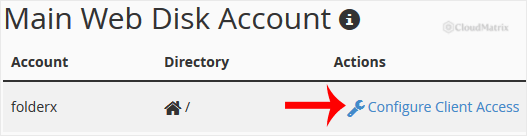
- Under Main Web Disk Account, click Configure Client Access.
Download and Run the Configuration Script
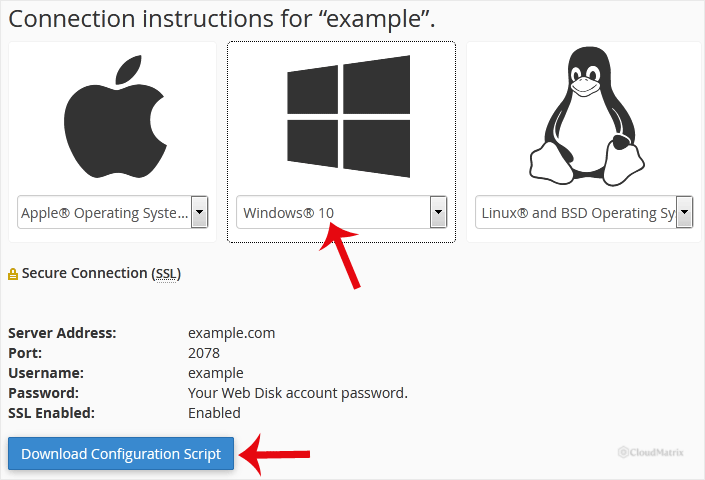
- Select your operating system from the drop-down menu, then click Download Configuration Script. cPanel builds a script that already contains the correct server address, port and account name, so there is nothing for you to type in.
- Open the downloaded script. It can take a minute or two to finish, because the operating system has to reach the server and negotiate the connection before it will show you anything.
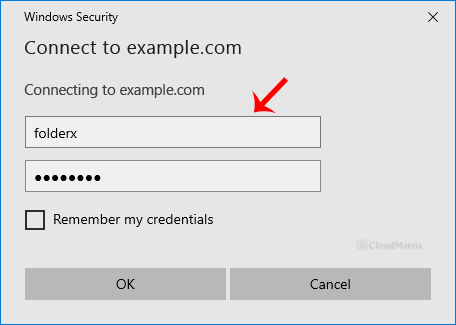
- When you are prompted, enter your Web Disk username and password. For the main account this is your cPanel username and password. For a restricted account it is the full username, including the domain.
Once authentication succeeds, your hosting account appears as a mapped drive on Windows, a mounted volume in Finder on macOS, or a network location on Linux. Your website files live under public_html.
Connect Manually Instead
The script is only a convenience. If it will not run on your machine, or you want to add the connection to a different device, you can set it up by hand with these details:
- Address:
https://yourdomain.com:2078for a secure connection, orhttp://yourdomain.com:2077for an insecure one. Replaceyourdomain.comwith your own domain. - Username: Your cPanel username for the main account, or the full
[email protected]username for a restricted account. - Password: The matching account password.
On Windows, use Map network drive in File Explorer and tick Connect using different credentials. On macOS, use Go then Connect to Server in Finder. On Linux, most file managers accept a davs:// address in their Connect to Server box.
Always prefer the secure option. On port 2077 your username and password cross the network unencrypted, and so does every file you open.
Windows Notes
- Use the SSL script. Modern versions of Windows refuse to send credentials over an unencrypted WebDAV connection by default, so the secure option on port
2078is the one that works without extra fiddling. - Digest Authentication. Older Windows clients connecting without SSL need Digest Authentication enabled on the Web Disk account. The option, when your cPanel version offers it, sits on the same Web Disk page. If you cannot see it, use the secure script instead rather than hunting for it.
- The WebClient service. Windows mounts WebDAV through a service called WebClient. If it is disabled, the mapped drive silently fails to appear. Set it to Automatic in Services if you hit that.
- The file size limit. Windows caps WebDAV transfers at roughly 50 MB out of the box, which is the most common reason a large upload fails halfway with a vague error. Use FTP, SFTP or the cPanel File Manager for anything bigger, or raise the limit in the registry if your IT policy allows it.
- Firewall. Port
2078must be allowed outbound in your computer's firewall and on your network.
Understand What Web Disk Is Not
Web Disk is a live network connection, not a sync tool. Nothing is stored on your computer, so every file you open is pulled across the internet at that moment and every save is pushed straight back. That has two practical consequences worth knowing before you rely on it:
- Working directly on large files, or on a folder with thousands of items, feels slow compared with a local disk. Copy the file down, work on it, then copy it back.
- There is no offline copy and no version history. Deleting a file over Web Disk deletes it on the server. Keep your own backups, and take a copy before editing anything on a live site.
Troubleshooting
- The script runs but nothing appears: On Windows, check that the WebClient service is running. On macOS, look in Finder under Locations in the sidebar rather than on the desktop.
- The login prompt keeps reappearing: The password is being rejected. For a restricted account you must enter the full username including the domain, for example
[email protected]. If you have recently changed your cPanel password, the main Web Disk account uses the new one. - Connection times out: Port
2077or2078is blocked. Test from a different network, such as a mobile hotspot, to confirm. Corporate networks frequently block non-standard ports. - Certificate warning on connecting: You are connecting to a hostname the certificate does not cover. Use the exact address the configuration script generated, or connect to the server hostname from your Noiz welcome email.
- Large uploads fail: See the Windows file size limit above. This is a client-side limit, not a limit on your hosting account.
- Files upload but the website does not change: Check where you saved them. Web Disk opens at your home directory, and website files must go into
public_htmlor the correct subfolder beneath it.
Related Articles
If the connection will not mount, or you are not sure whether your network allows the required ports, open a ticket from your Noiz client area with your operating system and the exact error message. The Noiz support team will confirm the settings from the server side and help you get connected.






