cPanel's Web Disk feature (also called WebDAV, or Web Folders on Windows) lets you mount your hosting account's files as a drive on your computer, so you can drag, drop, open and save files directly instead of using an FTP client or File Manager.
Your main cPanel username and password already work with Web Disk and give access to the whole home directory. This guide covers the other option: creating an additional Web Disk account, which is a separate login restricted to one folder. That is what you want when a designer, a client, a photographer or a backup script needs access to a single directory and nothing else.
Last reviewed: 27 July 2026, against current cPanel & WHM releases using the Jupiter interface. This guide is written for Noiz hosting and is kept current against cPanel. It complements, and does not replace, the official cPanel documentation linked below.
Official Documentation Reference
Prerequisites
- A hosting plan that uses cPanel, and your cPanel login details. If the screens below do not match what you see, your plan is on a different control panel, so contact Noiz support and the equivalent steps will be sent to you.
- The folder you want to share, or at least the path you want it created at, for example
public_html/folderx. - A device that supports WebDAV (Windows File Explorer, macOS Finder, or a client such as Cyberduck).
Create the Additional Web Disk Account
1. Log in to cPanel
Sign in to your cPanel account using the URL and credentials supplied by Noiz.
2. Open Web Disk
In the Files section, click Web Disk.
3. Fill in the new account details
Scroll to Create an Additional Web Disk Account and complete the form.
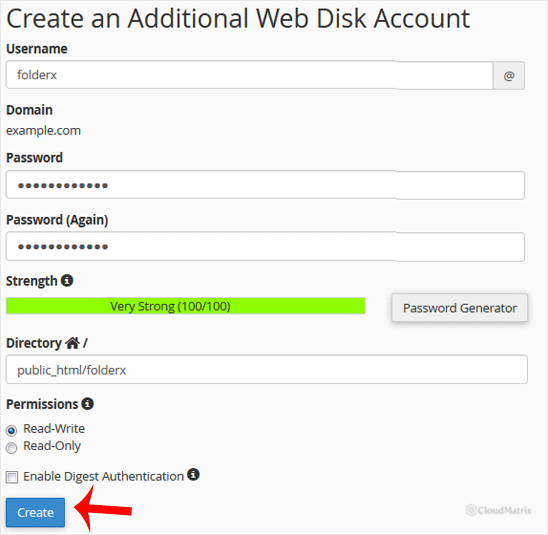
- Username: Enter a short name such as
folderxand pick the domain beside it. The login the person actually uses is the full address, for example[email protected], not the short name on its own. This trips up almost everyone the first time they connect. - Password: Type a password, or click Password Generator for a strong random one. Copy it somewhere safe before you leave the page, because cPanel will not show it again.
- Directory: Enter the folder this login should be limited to, for example
public_html/folderx. The path is relative to your home directory, and cPanel creates the folder if it does not already exist. Leaving the field blank grants access to the entire home directory, includingmail,logsand any files outsidepublic_html, so only do that deliberately. - Permissions: Choose Read-Write if the person needs to upload, edit and delete, or Read-Only if they should only download and view. Read-Only is the safer default for anyone outside your organisation.
Note on Digest Authentication: tick Enable Digest Authentication only if the account will be used from Windows and you cannot make an SSL connection on port 2078. Where the server has an SSL certificate signed by a recognised certificate authority and port 2078 is reachable, leave it off and connect over SSL instead, which is both simpler and more secure.
4. Create the account
Click Create. The new account appears in the Manage Additional Web Disk Accounts list, where you can later change its password or permissions, or delete it.
Connecting to the New Account
Once created, the account is used exactly like the main one. From the Manage Additional Web Disk Accounts list, click Configure Client Access beside the account to get an operating-system-specific setup script and the connection details.
Full connection instructions for Windows, macOS and third-party clients are covered here: How to Access cPanel Web Disk.
The two ports involved are 2078 for SSL connections and 2077 for unencrypted connections. Always use 2078 unless you have a specific reason not to, since credentials sent over 2077 travel in the clear.
Things Worth Knowing Before You Hand Out the Login
- Storage is shared, not separate. Additional Web Disk accounts do not get their own quota. Everything uploaded through them counts against your hosting plan's disk space.
- Restriction is by folder, not by file type. A Read-Write account can overwrite or delete anything inside its directory, including files you put there yourself.
- Files inside
public_htmlare publicly reachable. If the folder sits underpublic_html, anything placed in it can be downloaded by anyone who knows or guesses the URL. For private file exchange, use a directory outsidepublic_html, such aswebdisk-sharein your home directory. - Deleting the account does not delete the files. Removing a Web Disk account only revokes the login. The directory and its contents remain on the account.
- One account per person. Resist sharing a single login between several people. Separate accounts mean you can revoke one without disrupting everyone else.
Troubleshooting
Symptom: the login is rejected. Check that the full username including the domain is being used, for example [email protected]. Re-enter the password from cPanel rather than retyping it from memory.
Symptom: the connection times out. Port 2078 is often blocked on office, school and public networks. Test from a different connection, such as a mobile hotspot, to confirm before assuming a server fault.
Symptom: Windows connects but the drive is read-only or drops out. Confirm the account was created with Read-Write permissions, and use the Configure Client Access script from cPanel rather than mapping the drive by hand. Older Windows builds also need Digest Authentication enabled when SSL is not in use.
Symptom: the person sees more folders than expected. The Directory field was left blank or set too high in the tree. Delete the account and recreate it with the exact path, for example public_html/folderx.
Need a Hand?
If the Web Disk account will not connect, or you would like Noiz to set up a restricted folder and login on your behalf, open a ticket from your Noiz client area with the domain name and the folder path you have in mind, and the Noiz support team will take it from there.






