A subdomain is a separate section of your main domain that behaves like its own site, for example blog.yourdomain.com or shop.yourdomain.com. When you no longer need one, you can remove it from cPanel in a few clicks. This guide shows you how to remove a subdomain on your Noiz cPanel hosting, and explains the one thing cPanel does not do for you: delete the files that were behind it.
Last reviewed: 27 July 2026, against cPanel & WHM (current stable, version 110+ with the Jupiter theme). This guide is written for Noiz hosting and is kept current against cPanel. It complements, and does not replace, the official cPanel documentation linked below.
Official Documentation Reference
- cPanel Domains interface, the current recommended place to manage subdomains.
- cPanel Subdomains interface, the classic interface shown in the screenshots below.
Prerequisites
- Access to your cPanel account. If you are not sure how to sign in, see How to Create a Subdomain in cPanel for the login steps.
- The name of the subdomain you want to remove.
Two ways to reach the subdomain list
Current cPanel versions (Jupiter theme) manage subdomains inside the unified Domains interface, while older or customised setups still show a dedicated Subdomains icon. Both remove the subdomain the same way. Use whichever your account displays.
Option A: the Domains interface (current cPanel)
- Log in to your cPanel account.
- In the Domains section, click Domains.
- Find the subdomain in the list, then click Manage beside it and choose Remove Domain (in some versions the action is a Remove link directly in the row).
- Confirm the removal when prompted.
Option B: the Subdomains interface (classic)
- Log in to your cPanel account.
- In the Domains section, click Subdomains.

- Under the Modify a Subdomain list you will see every subdomain on the account.
- Click Remove in the Actions column for the subdomain you want to delete.
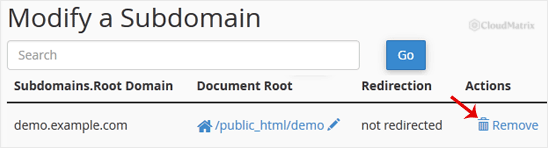
- To confirm, click Delete Subdomain. The subdomain is then removed permanently.

Important: your files are not deleted
Removing a subdomain in cPanel deletes the subdomain entry and its associated DNS record, so the address stops resolving. It does not delete the files in the subdomain's document root folder (typically a folder such as public_html/blog). Those files stay on the server and continue to count towards your disk usage.
If you want the content gone as well, open File Manager from the Files section of cPanel, browse to the subdomain's old document root, and delete the folder yourself. Do this only if you are certain you no longer need the content, as it cannot be undone.
Troubleshooting
Symptom: The subdomain is not in the list. It may have been created as an addon domain or a separate domain rather than a subdomain. Check the Domains interface (Option A above), where all domain types appear together.
Symptom: cPanel will not let you remove it, or an error mentions an addon domain. A subdomain that was generated automatically for an addon domain cannot be removed on its own. Remove the addon domain instead, which also removes its subdomain.
Symptom: The address still loads after removal. DNS changes can take time to clear from your device and from resolvers on the internet. Clear your browser cache or try a private window, and allow time for the change to propagate.
Need a hand?
If you are on a managed Noiz plan, or you are unsure which subdomain is safe to remove, open a ticket from your Noiz client area and the support team will handle the removal for you.






