If Contact Form 7 stops working on your WordPress site, hangs after a visitor clicks Send, or fails with a server error, the cause is often the All-In-One Security (AIOS) plugin blocking WordPress REST API requests. The submit button spins, the message never sends, and no clear error appears to the visitor. This guide explains why that happens and gives you two ways to fix it while keeping your firewall in place.
Last reviewed: 27 July 2026, against All-In-One Security (AIOS) 5.4.9 (latest stable) and Contact Form 7. This guide is written for Noiz hosting and is kept current against both plugins. It complements, and does not replace, the official plugin documentation linked below.
Official Documentation Reference
- All-In-One Security (AIOS) on WordPress.org
- Contact Form 7 official documentation
- WordPress REST API Handbook
Prerequisites
- Administrator access to your WordPress dashboard.
- Both All-In-One Security (AIOS) and Contact Form 7 installed and active.
- Optional, for diagnosis: the ability to enable
WP_DEBUGinwp-config.php.
Why the form hangs
Contact Form 7 submits messages through the WordPress REST API rather than a classic form post. When AIOS has Disallow unauthorized REST requests switched on, it only allows REST calls from logged-in users. A visitor filling in your contact form is not logged in, so their submission is blocked before it reaches the form handler. The button keeps spinning and the message is never delivered.
- The error is hidden. Current AIOS versions reject the blocked call with a
403response, which the form does not surface to the visitor. On the front end the form simply appears stuck. - Turn on debugging to confirm it. Set
WP_DEBUGtotrueinwp-config.phpand reproduce the submission. The blocked REST request (often recorded as a500in the PHP error log) confirms the REST API restriction is the culprit rather than a mail or SMTP fault.
Two ways to fix it
Both fixes live on the same AIOS screen. In your WordPress dashboard, go to WP Security > Firewall, open the PHP rules tab, then choose WP REST API from the Rules list on the left. The two controls you need are on this page.
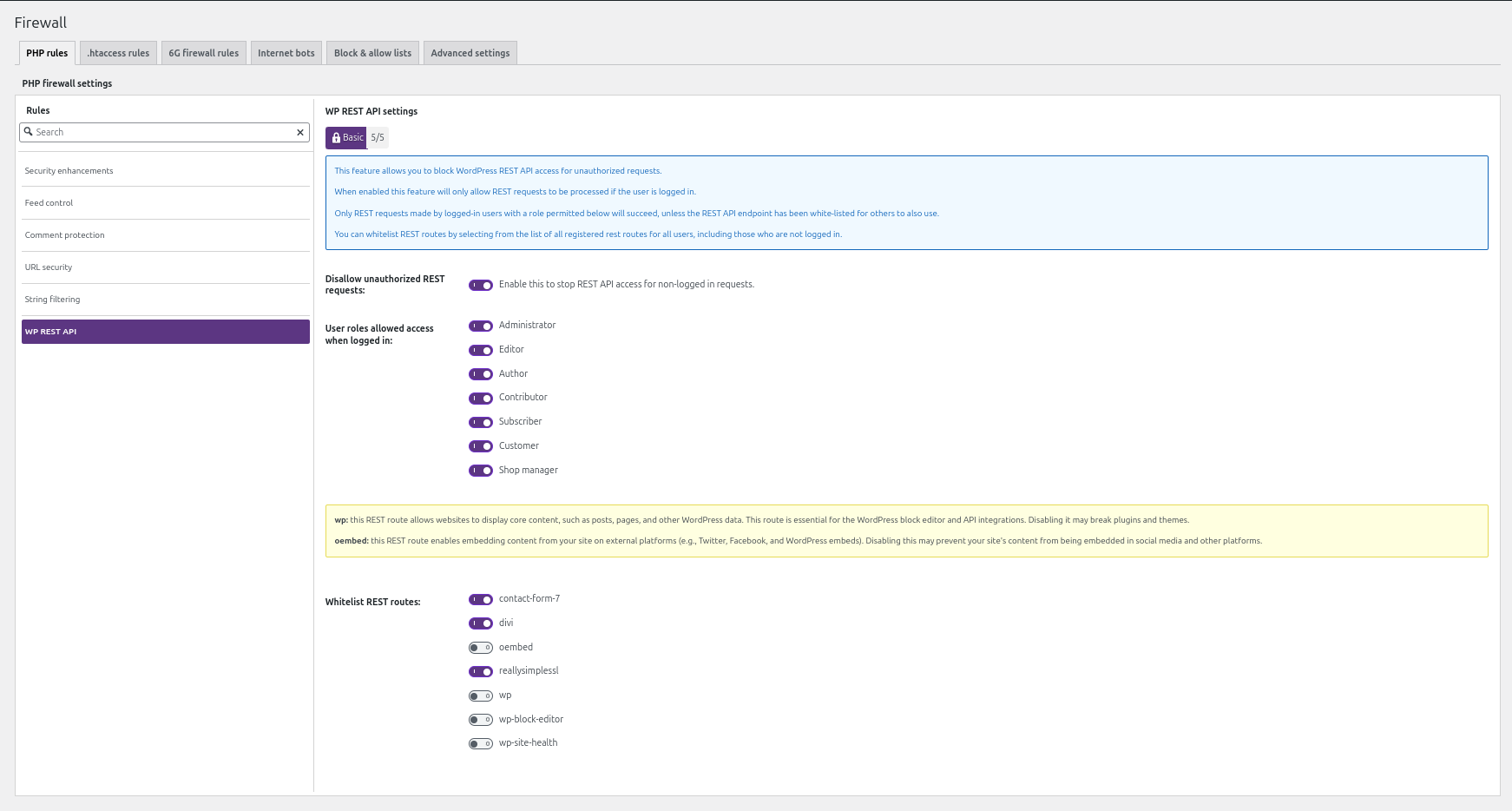
1. Whitelist the Contact Form 7 route (recommended)
This is the safer fix because it keeps the REST API firewall switched on and only permits the one route your contact form needs. Contact Form 7 registers its own REST route, so it appears automatically in the AIOS list as contact-form-7; you do not add it by hand.
- On the WP REST API page, scroll to the Whitelist REST routes section.
- Switch the contact-form-7 toggle on.
- Save your changes.
- Reload your site and submit the contact form to confirm the message now sends.
Whitelisting a route allows it for everyone, including logged-out visitors, which is exactly what a public contact form requires. Everything else stays protected by the firewall. If contact-form-7 is not listed, make sure the plugin is active and up to date, then reload the AIOS page so its routes are re-registered.
2. Turn off the REST API block (fallback, less secure)
If the whitelist option is unavailable or you need a quick fix, you can switch the firewall rule off entirely. This allows all REST requests again, so treat it as a fallback rather than the preferred option.
- On the same WP REST API page, find Disallow unauthorized REST requests.
- Switch it off so unauthorised REST access is no longer blocked.
- Save your changes.
- Test your contact form to confirm it is working again.
Verify the fix
After applying either fix, submit a real test message and confirm the success notice appears and the email arrives. If the form still hangs after whitelisting the route, check for a second security or firewall layer (for example a caching or bot-protection plugin) that may also be blocking REST calls, and confirm Contact Form 7 mail is configured correctly.
If your site runs on a Noiz managed WordPress or hosting plan, open a support ticket from your Noiz client area and the team can apply and verify this change for you.






