This guide shows you how to rename an existing FTP account in Plesk, changing the username you use to sign in over FTP or SFTP without deleting the account and creating a new one. Only the login name changes: the account keeps the same home directory, permissions, and password. In the Plesk interface this login name is labelled the FTP account name.
Last reviewed: 27 July 2026, against Plesk Obsidian 18.0 (latest stable). This guide is written for Noiz hosting and is kept current against Plesk. It complements, and does not replace, the official Plesk documentation linked below.
Official Documentation Reference
- Plesk Obsidian Documentation and Help Portal (see the Customer Guide, under Website Management > FTP Access, for the full reference on FTP accounts).
Prerequisites
- Access to your Plesk account for the subscription that holds the FTP account.
- An existing additional FTP account to rename. If you have not created one yet, add it first on the same FTP Access screen.
Rename the FTP Account
- Log in to your Plesk account.
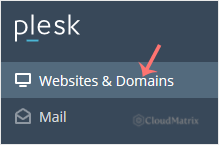
- Click Websites & Domains in the sidebar menu.
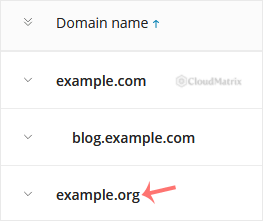
- Under the list of domain names, click the domain the FTP account belongs to.
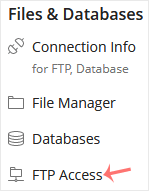
- Under Files & Databases, click FTP Access.
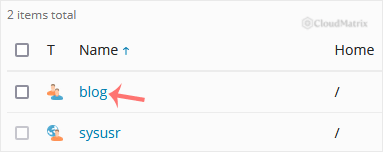
- Click the FTP account you want to rename.
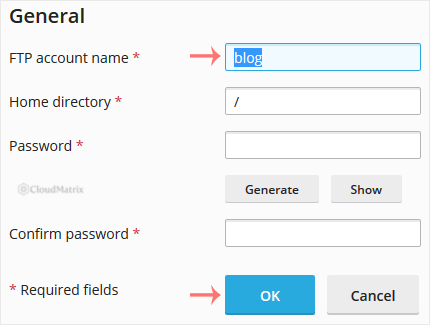
- Type the new name in the FTP account name field, then click OK to confirm.
After You Rename the Account
- The old username stops working the moment you save the change. Update every saved connection that uses it: FTP clients such as FileZilla, WinSCP, or Cyberduck, plus any deployment scripts, CI pipelines, or applications that upload over FTP.
- Renaming does not touch the password. If you want to reset it at the same time, change it on this same screen before clicking OK.
- Renaming does not move the account's home directory, so your files stay exactly where they were.
Troubleshooting
The account you want is not listed under FTP Access: the main login tied to the subscription is its system user rather than an additional FTP account. Change that login name under Websites & Domains > your domain > Web Hosting Access, not on the FTP Access screen.
Plesk reports that the name is already in use: FTP account names must be unique across the server, not just within your subscription. Choose a different name, ideally one that is easy to trace back to the site, such as yourdomain-uploads.
If you are on a managed Noiz hosting plan and would prefer Noiz to make the change for you, open a support ticket from your client area and the team will rename the account and confirm once it is done.






