You can already reach your files over FTP with your main Plesk subscription login, which gives full access to the subscription's home directory. When you instead want to give someone access to only one website, or only a single folder, create a separate FTP account. Each FTP account is locked to the home directory you assign, so the user cannot browse or change anything outside it. This is the safe way to hand a developer, designer or client limited upload access without sharing your main Plesk login.
Last reviewed: 27 July 2026, against Plesk Obsidian 18.0 (latest stable). This guide is written for Noiz hosting and is kept current against Plesk. It complements, and does not replace, the official Plesk documentation.
Prerequisites
- A hosting subscription on a Noiz Plesk server, with login access to the Plesk control panel.
- The website (domain) you want to grant access to, already added to your subscription.
- The folder you want the account restricted to, for example the whole site or a single subfolder.
Create the FTP Account
- Log in to your Plesk account.
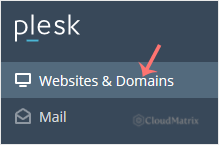
- Click Websites & Domains in the sidebar menu.
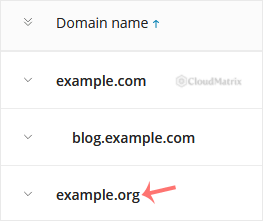
- Under the list of Domain names, click the appropriate domain.
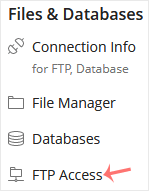
- Under Files & Databases, click FTP Access.
- Click Add an FTP Account.

- Fill in the account details:
- FTP account name: a username for the account, for example
john. This is the name the user logs in with. - Home directory: click the folder icon and choose the directory this account may access. Point it at the whole site (for example
httpdocs) or at a single subfolder. The account cannot move above the folder you choose. - Password: type a strong password, or click Generate to create one. Click Show to reveal and copy it.
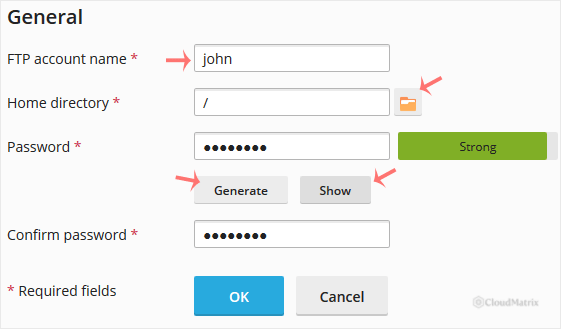
- FTP account name: a username for the account, for example
- Confirm with OK.
Connect With the New Account
Use these settings in any FTP client, such as FileZilla, to connect with the account you just created:
- Host: your domain name, such as
ftp.yourdomain.com, or the server's IP address. Replaceyourdomain.comwith your own domain. - Username: the FTP account name you set, for example
john. - Password: the password you set for the account.
- Port:
21(the default FTP port).
Use an Encrypted Connection
Plain FTP sends your username and password across the internet in clear text. Where your FTP client offers it, choose FTP over TLS (FTPS, explicit encryption) so both the login and the file transfer are encrypted. In FileZilla, set the encryption to Require explicit FTP over TLS. This still uses port 21 but protects your credentials.
Troubleshooting
Login fails or "530 Login incorrect": re-check the username and password, and confirm you are connecting to the correct host. Passwords are case sensitive.
The account cannot see other websites or folders: this is expected. An FTP account is restricted to its home directory and cannot browse outside it. Create a separate account, or widen the home directory, if broader access is needed.
Connection times out: confirm the host and port are correct and that no local firewall is blocking outbound FTP. Switching the client to passive mode resolves most transfer stalls behind home or office routers.
If you are on a managed Noiz plan and would prefer the Noiz team to set up FTP access for you, contact Noiz support and the team will take care of it.






