This guide shows you how to redirect a subdomain to an external web address in Plesk on your Noiz hosting. Redirecting (also called forwarding) sends anyone who visits the subdomain straight to a different URL, which is useful when you want shop.yourdomain.com to point at a third-party store, a landing page, a social profile, or another site you run. The subdomain keeps no website of its own; it simply forwards every request to the destination you choose.
Last reviewed: 27 July 2026, against Plesk Obsidian 18.0 (latest stable). This guide is written for Noiz hosting and is kept current against Plesk. It complements, and does not replace, the official Plesk documentation linked below.
Official Documentation Reference
- Plesk Obsidian Customer Guide (see the Websites & Domains chapter for hosting types and forwarding).
Prerequisites
- A Noiz hosting subscription that uses the Plesk control panel, with login access.
- The subdomain already created in Plesk under Websites & Domains. If it does not exist yet, add it first using Add Subdomain, then return here.
- The destination URL you want visitors to land on, for example
https://www.example.com/promo.
Redirect the Subdomain
-
Log in to your Plesk account.
-
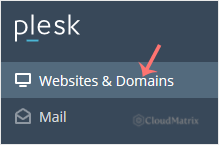
Click Websites & Domains in the sidebar menu.
-
In the list of domain names, find the row for your subdomain and click the
 Hosting Settings icon in that row.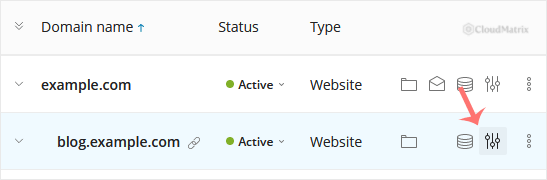
-
Next to Hosting Type (shown beside Website), click Change.

-
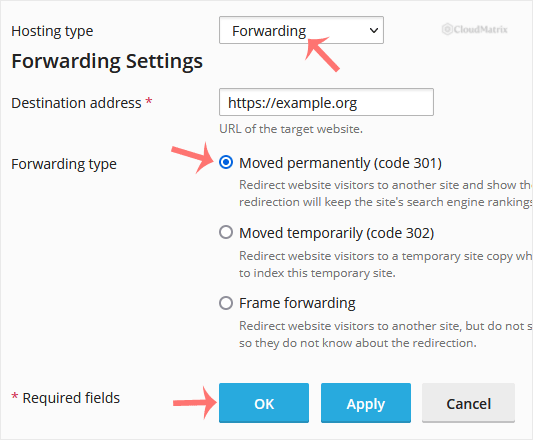
Set the following:
- Hosting type: choose Forwarding from the drop-down menu.
- Destination address: enter the full URL you want the subdomain to redirect to, including
https://. - Forwarding type: choose the option that suits your needs (see the explanation below).
-
Click OK. Plesk warns you that changing the hosting type affects the subdomain; read the warning and confirm with Yes.
The change takes effect within moments. Visit the subdomain in a fresh browser tab to confirm it now forwards to the destination.
Which Forwarding Type to Choose
Plesk offers three forwarding behaviours. The right choice depends on whether the move is permanent and whether you want the subdomain to stay visible in the address bar:
- Moved permanently (301): the recommended default. It tells search engines the subdomain has permanently moved, so link authority and rankings transfer to the destination. The visitor's address bar shows the destination URL, and browsers cache the redirect.
- Moved temporarily (302): use this only when the redirect is genuinely temporary, for example during a short campaign, after which you will point the subdomain elsewhere. Search engines keep the subdomain indexed rather than passing authority to the destination.
- Frame forwarding: the visitor's address bar keeps showing your subdomain while the destination loads inside a frame. It hides the real URL, but it weakens SEO, breaks bookmarking and, importantly, will not work for destinations that block being framed (many modern sites send an
X-Frame-OptionsorContent-Security-Policyheader that prevents it). Avoid it unless you have a specific reason.
Troubleshooting
- The subdomain still shows the old site or a directory listing: your browser or a proxy has cached the previous response. Clear the cache or test in a private/incognito window. A 301 redirect in particular is cached aggressively by browsers.
- The subdomain does not load at all: confirm the subdomain's DNS resolves to your Noiz Plesk server. If you have only just created the subdomain, DNS may still be propagating, which can take up to a few hours.
- Frame forwarding shows a blank page or a "refused to connect" error: the destination site blocks being displayed in a frame. Switch the forwarding type to Moved permanently (301) instead.
- The destination redirects back to your subdomain: check that the destination address does not itself point back at the subdomain, which creates a redirect loop.
If the subdomain will not forward correctly after these checks, Noiz support can inspect the subscription and DNS for you. Open a ticket from your Noiz client area and include the subdomain name and the destination URL you are trying to redirect to.






