This guide shows you how to permanently delete a MySQL or MariaDB database from your hosting account using the Plesk control panel. It is written for the Plesk-based Noiz hosting platform, and takes only a few clicks.
Warning: deleting a database is permanent and cannot be undone. Every table and record it holds is removed straight away, and there is no recycle bin to restore from. If the database is used by a live website or application (for example a WordPress, Joomla or custom PHP site), that site will stop working the moment the database is gone. Export a backup first if there is any chance you will need the data again, and confirm that nothing still depends on the database before you continue.
Last reviewed: 27 July 2026, against Plesk Obsidian 18.0 (latest stable). This guide is written for Noiz hosting and is kept current against Plesk. It complements, and does not replace, the official Plesk documentation linked below.
Official Documentation Reference
- Plesk Obsidian Customer Guide (see the Databases section for full details on managing databases and database users)
Before You Start
- Make sure you are removing the correct database. Note down its exact name, because two databases can look almost identical apart from a suffix.
- If you might need the data again, export a backup first (for example with the Export Dump option in phpMyAdmin, or via your account backups) before deleting anything.
- Update any website or application that connects to the database, so it no longer points at the database you are about to remove.
Delete a Database in Plesk
1. Log in to Plesk
Log in to your Plesk account. If you are unsure of your login URL or details, they are shown in your Noiz welcome email or client area.
2. Open the Databases page
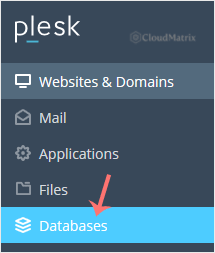
Click Databases in the sidebar menu.
3. Select the database to remove
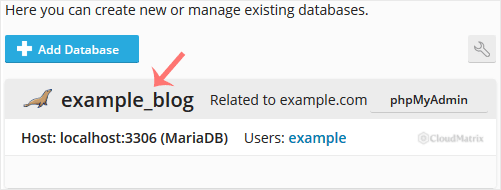
From the list of databases, find and select the database you want to delete. Double-check the name against the one you noted earlier before going any further.
4. Remove the database
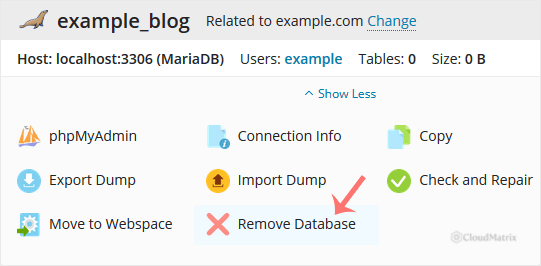
Click Remove Database. A confirmation box appears; confirm with Yes. The database, along with all of its tables and data, is then removed.
Your database is now deleted.
What Happens to the Database User
Removing a database does not always remove the database user that was linked to it. If you created a dedicated user for this database and no longer need it, delete that user separately from the Databases page (each database lists its users, and each user has its own Remove option). Leaving unused database users behind is a small tidiness and security issue rather than a fault, but it is good practice to clear them out.
Troubleshooting
Your website shows a database connection error after deletion: the site is still trying to reach the database you removed. Restore the database from a backup, or update the site so it connects to the correct, existing database instead.
The database will not delete or the option is greyed out: an active process or connection may be holding it open. Wait a moment and try again, and make sure no application is actively using it.
If you are on a managed Noiz plan and would rather not do this yourself, or you delete a database by mistake, contact Noiz support and the team will help you remove it safely or restore from the most recent backup.






