A Scheduled Task (also called a cron job) runs a command or script automatically on a schedule you set. As your needs change, you will sometimes want to adjust an existing task, for example to correct its command, change how often it runs, or switch the email address that receives its output. Other times you will want to remove a task you no longer need. This guide shows you how to edit and how to delete Scheduled Tasks from inside the Plesk control panel on your Noiz hosting. If you need to create a new task instead, see the guide on adding Scheduled Tasks.
Last reviewed: 27 July 2026, against Plesk Obsidian (latest stable). This guide is written for Noiz hosting and is kept current against Plesk. It complements, and does not replace, the official Plesk documentation linked below.
Official Documentation Reference
Before you start
- You need your Plesk login details for your Noiz hosting account.
- You need at least one Scheduled Task already set up. If the list is empty, there is nothing to edit or delete yet.
- Editing or removing a task changes what runs automatically on your hosting, so make sure you know what a task does before you change or delete it.
How to edit a Scheduled Task
1. Log in to your Plesk account.
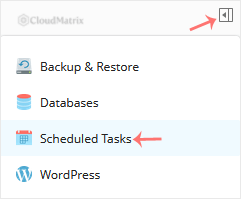
2. Click the pull-out (arrow) icon in the right sidebar and choose Scheduled Tasks.
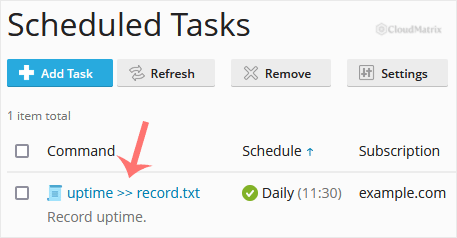
3. In the Command list, find the task you want to change and click it.
4. Make your changes, then confirm with OK. You can adjust the command or script that runs, the schedule (minute, hour, day of the month, month, and day of the week), and where the task sends its notification.
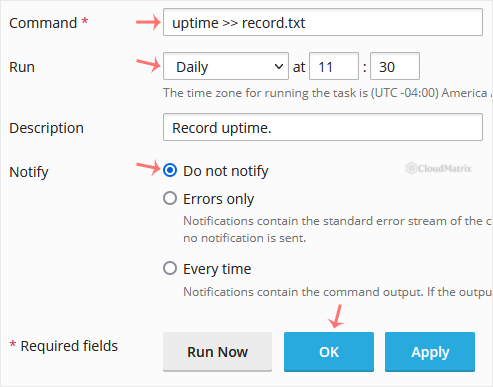
Your changes take effect from the task's next scheduled run; a run already in progress is not affected. If you want to check a change straight away without waiting, open the task and use Run Now.
Tip: if you only want to pause a task for a while rather than change it, you do not have to delete it. Open the task and clear its enabled (switched-on) state. The task stays in your list, keeps its command and schedule, and simply does not run until you switch it back on.
How to delete a Scheduled Task
1. In the Command list, tick the box next to each task you want to remove, then click Remove.
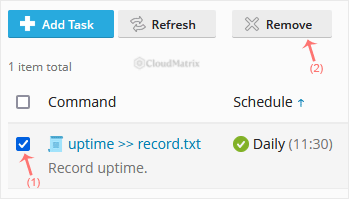
2. A confirmation box appears. Click Yes, and the selected task is removed.
Removing a task is immediate and cannot be undone. The task's command and schedule are deleted, so if you think you might need it again, disable it (see the tip above) instead of removing it, or note down its command and schedule first so you can recreate it later.
Need a hand?
If you cannot reach your Scheduled Tasks, a task will not save, or a job is not running as expected, contact the Noiz support team through the client area and they will help you get it sorted.






