The Websites & Domains page in Plesk can be shown in different view modes, which change how your domains and their tools are laid out on screen. This guide shows you how to switch between those view modes on your Noiz hosting, so you can pick the layout that suits how you work.
Plesk offers three view modes on this page:
- Active List: the default modern layout. Each domain is shown as a panel with its most-used tools (files, databases, email, and so on) grouped together.
- Classic List: a more compact, table-style layout that lists domains in rows. Handy if you manage many domains and want them all visible at once.
- Dynamic List: an older layout carried over from earlier Plesk releases.
Last reviewed: 27 July 2026, against Plesk Obsidian (latest stable). This guide is written for Noiz hosting and is kept current against Plesk. It complements, and does not replace, the official Plesk documentation linked below.
Official Documentation Reference
Prerequisites
- Your Plesk login details for your Noiz hosting account.
Change the view mode in Plesk
1. Log in to your Plesk account.
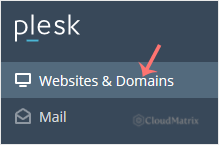
2. Click Websites & Domains in the sidebar menu.
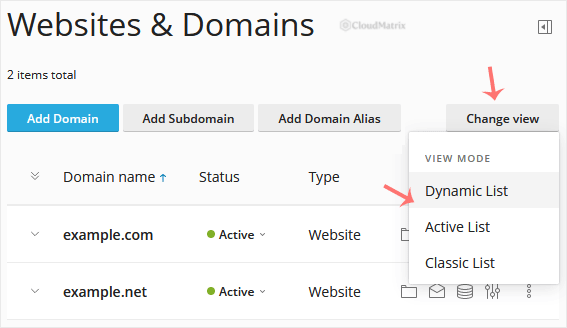
3. If the page is currently in Dynamic List view, click Change View on the right-hand side and choose your preferred mode.
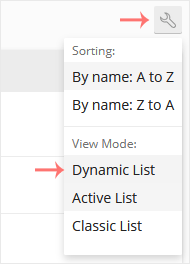
4. If the page is currently in Active List or Classic List view, click the wrench icon to switch to a different mode.
Your choice takes effect straight away and Plesk remembers it for the next time you open the page. You can switch back at any time using the same controls, so there is no harm in trying each mode to see which one you prefer.
Need a hand?
If the view controls are not where you expect, or the page will not load, contact the Noiz support team through your client area and they will help you sort it out.






