Every hosting plan comes with a set amount of disk space (how much your files, databases, and mailboxes take up on the server) and a monthly bandwidth allowance (how much data your site transfers to visitors). Keeping an eye on both helps you spot a mailbox that is filling up, a backup that is eating space, or a sudden traffic spike before any of it starts to affect your site. This guide shows you how to check your current disk and bandwidth usage from the Plesk control panel on your Noiz hosting.
Last reviewed: 27 July 2026, against Plesk Obsidian (latest stable). This guide is written for Noiz hosting and is kept current against Plesk. It complements, and does not replace, the official Plesk documentation linked below.
Official Documentation Reference
Before you start
- You need your Plesk login details for your Noiz hosting account.
- Statistics in Plesk are refreshed on a schedule rather than in real time, so the figures you see reflect the last update and may lag the current moment by a few hours. Disk usage tends to update sooner than traffic figures.
Check your disk and bandwidth usage
1. Log in to your Plesk account.
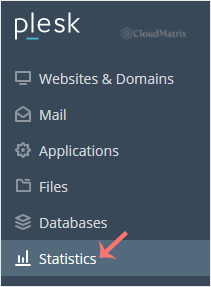
2. Click Statistics in the sidebar menu.
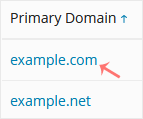
3. If your account holds more than one domain, click the domain you want to check.
4. Read your usage from the summary. Disk space usage is shown on the left, and your traffic (bandwidth) usage is shown on the right.
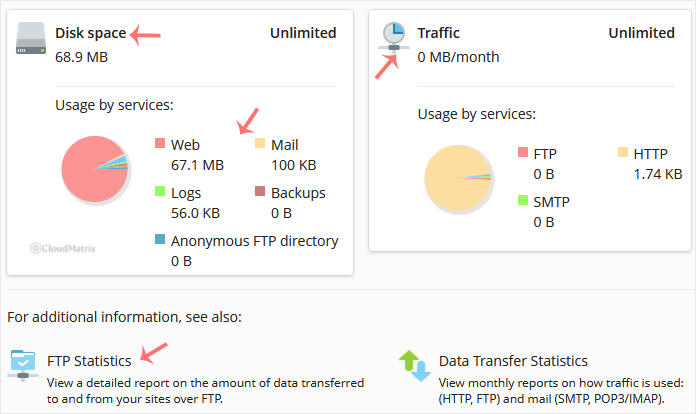
From the same page you can drill into the detailed breakdowns for FTP, Data Transfer, and Web Statistics to see where your space and traffic are actually going.
Making sense of the figures
- Disk space counts everything stored under your account: website files, databases, email held in mailboxes, and any logs or backups kept on the server. If your disk figure climbs unexpectedly, a large mailbox or an old backup is the usual culprit.
- Traffic (bandwidth) measures the data your account transfers over the billing period and resets at the start of each new period. A one-off spike usually just means a busy day; a steady climb can point to growing traffic or a resource being downloaded repeatedly.
- The Data Transfer breakdown separates web, FTP, and mail traffic, which makes it easy to tell ordinary visitor traffic apart from, say, a large FTP upload.
Need a hand?
If your usage is close to your plan's limits, or you are not sure what is consuming your space or bandwidth, contact the Noiz support team through the client area. They can help you track down the cause and, where it makes sense, look at the right plan for your needs.






