The Plesk File Manager lets you view and edit the files inside your hosting subscription directly in the browser, without needing an FTP client or SSH access. This guide shows you how to open a file for editing, make your changes, and save them on Noiz hosting.
Last reviewed: 27 July 2026, against Plesk Obsidian (latest stable). This guide is written for Noiz hosting and is kept current against Plesk. It complements, and does not replace, the official Plesk documentation linked below.
Official Documentation Reference
Prerequisites
- Access to your Plesk control panel. If you are not sure how to log in, see How to Log in to Plesk.
- An existing file in your subscription that you want to edit.
Edit a File in the Plesk File Manager
Step 1: Log in to your Plesk account.
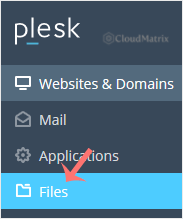
Step 2: Click Files in the sidebar menu.
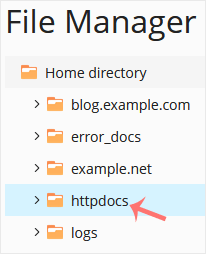
Step 3: Under File Manager, open the httpdocs directory. This is the document root for your main website, so the files that make up your site live here.
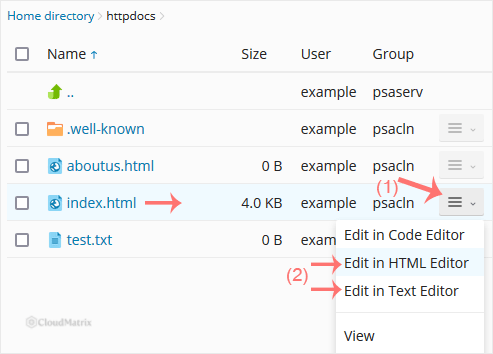
Step 4: Hover over the file you want to change so its row is highlighted, then click the menu icon  at the end of the row to open the context menu. Choose Edit in Code Editor for source-accurate editing of code, or Edit in HTML Editor for a visual editor.
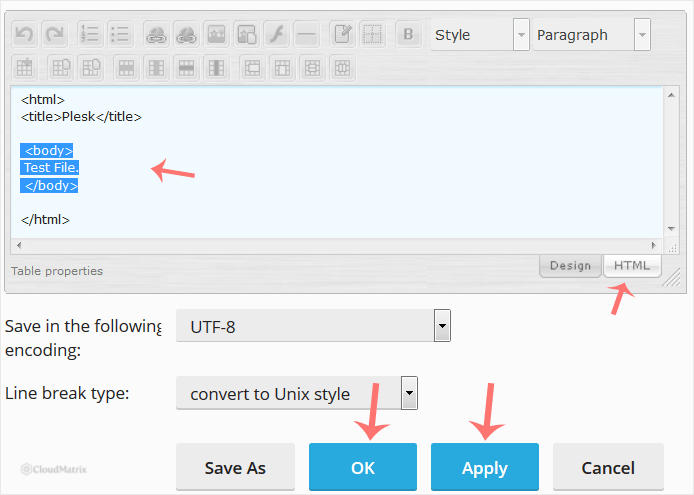
Step 5: Make your changes, then save by clicking OK. The saved file goes live immediately, so there is no separate upload or publish step.
Which Editor Should You Use?
Plesk offers more than one editor from the context menu, and the choice matters:
- Code Editor shows the raw source with syntax highlighting and line numbers. Use it for HTML, CSS, PHP, JavaScript, configuration files (such as
.htaccessorwp-config.php), and anything where the exact characters matter. - HTML Editor is a visual (WYSIWYG) editor. It is convenient for simple text and formatting changes, but it can rewrite or reformat your markup when it saves. Avoid it for files that contain code you have hand-written, or your layout may change unexpectedly.
- Text Editor is a plain, no-frills option for quick edits to plain-text files.
Before You Save: A Few Gotchas
- Changes are live instantly. Because you are editing the file in place on the server, saving overwrites the running copy at once. For an important file, make a copy first: select the file, choose Copy from the context menu, and keep the copy as a quick rollback.
- Permissions. If saving fails, the file or its parent directory may not be writable. Check the file's permissions in the File Manager and adjust them if needed.
- Encoding. The editors save in UTF-8. If you paste content from another program and see odd characters, that is usually a character-encoding mismatch in the source you copied.
Need a Hand?
If you would rather not edit production files yourself, or a change has broken your site, Noiz support can help. Managed hosting customers can ask the Noiz team to make the edit or restore the file for you.






