This guide shows you how to create a new directory (folder) and a new file inside the File Manager in Plesk. You can use these steps to organise your website content, add a fresh page, or drop in a configuration file such as .htaccess without needing an FTP client or SSH access.
Last reviewed: 27 July 2026, against Plesk Obsidian 18.0 (latest stable). This guide is written for Noiz hosting and is kept current against Plesk. It complements, and does not replace, the official Plesk documentation linked below.
Official Documentation Reference
Prerequisites
- A Noiz hosting account with Plesk access.
- At least one domain or subscription added to your Plesk account.
How to Create a Directory in the Plesk File Manager
- Log in to your Plesk account.
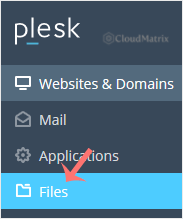
- Click Files in the sidebar menu.
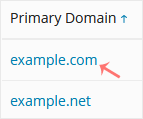
- If your account holds more than one domain, click the domain you want to work on.
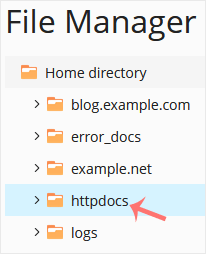
- Under File Manager, open the directory in which the new folder should live. For website content this is usually httpdocs, which is the document root that Plesk serves to visitors. Open a different directory first if you want the new folder created somewhere else.
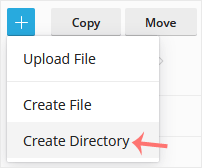
- Click the + (plus) icon and choose Create Directory.
- Type a directory name, for example
my-directory, in the input box, then confirm with OK. The new folder appears inside whichever directory you had open in step 4.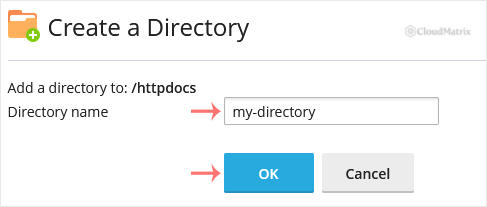
How to Create a File in the Plesk File Manager
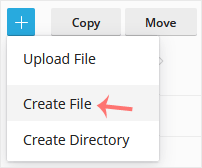
- Open the directory that should contain the file, then click the + (plus) icon and choose Create File.
- Type the file name, for example
home.html, in the input box, then confirm with OK. To edit the file straight away, tick Use HTML editor (or the code editor) before you confirm, or select the file afterwards and choose Edit.
Useful to Know
- Web root: anything you place directly in httpdocs is publicly reachable. A file created as
httpdocs/home.htmlis served atyourdomain.com/home.html(replaceyourdomain.comwith your own domain). - Nested paths: the File Manager creates the folder or file inside the directory you currently have open, so open the target folder before you click the plus icon.
- Hidden files: names that begin with a dot, such as
.htaccess, are hidden by default. If you cannot see a file you created, enable Show Hidden Files from the settings toggle in the File Manager toolbar. - Naming: avoid spaces and special characters in file and folder names to keep URLs and scripts predictable; use hyphens instead, for example
my-page.html.
Troubleshooting
The Create Directory or Create File option is greyed out: you have not selected a writable directory. Open httpdocs (or another folder you own) first, then click the plus icon.
The new file or folder does not appear: it was likely created inside a different directory than you expected. Check the breadcrumb path at the top of the File Manager, and enable Show Hidden Files if the name starts with a dot.
If you need a hand creating or editing content in your Plesk File Manager, the Noiz support team is available. Open a ticket from your Noiz client area and the team will assist.






