This guide shows you how to upload files to your website using the Plesk File Manager on your Noiz hosting. The File Manager is a built-in tool that lets you manage the files and folders on your hosting space straight from your web browser, with no separate FTP program to install. It is the quickest way to add one or a handful of files, such as an index.html page, an image, or a configuration file.
Last reviewed: 27 July 2026, against Plesk Obsidian 18.0 (latest stable). This guide is written for Noiz hosting and is kept current against Plesk. It complements, and does not replace, the official Plesk documentation linked below.
Official Documentation Reference
- Plesk Obsidian Customer Guide covers managing your website content, including the File Manager.
Prerequisites
- A Plesk account on your Noiz hosting service, with your login details to hand.
- The files you want to upload, saved on the computer you are working from.
Upload Files with the Plesk File Manager
- Log in to your Plesk account.
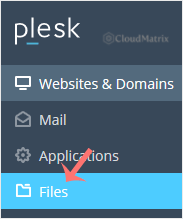
- Click Files in the sidebar menu.
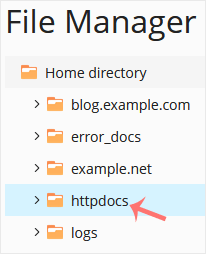
- Under File Manager, open the httpdocs directory. This is the document root for your main domain, so anything you place here is served on your website. If you are uploading to a subdomain or an additional domain, open its own document root folder instead.
- Click the plus (+) icon and choose Upload. Then select the file you want to upload from your computer.
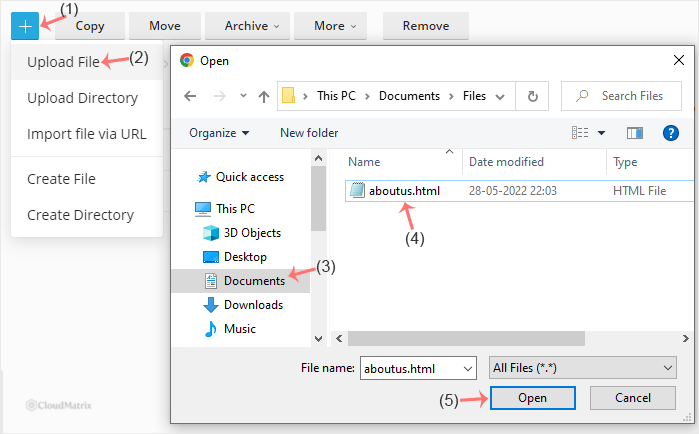
- Click Open. The file uploads into the folder you are currently viewing and appears in the list once it has finished.
Your file has now been uploaded and, if it sits in the document root, is live on your website.
Good to Know
- You can upload several files at once. In the file selection window, hold down the
Ctrlkey (orCmdon a Mac) and click each file you want, then click Open to upload them together. - Uploading a file with an existing name replaces it. Plesk overwrites the current file without keeping a copy, so double-check the name before you upload if you do not want to lose the old version.
- For a whole website or many files, upload a single archive. Compress the files into a
.zipon your computer, upload that one archive, then select it in the File Manager and use Extract Files. This is far faster and more reliable than uploading hundreds of files one by one. - Very large files may hit the upload limit. Browser-based uploads are capped by the web server and PHP settings on the account. If a large file fails to upload through the File Manager, use an SFTP or FTP client instead, which has no such browser limit.
Troubleshooting
The file uploaded but does not show on your website: confirm it is in the correct document root (httpdocs for your main domain) and that the file name and extension are exactly what your site expects. Browsers also cache pages, so clear your cache or open the page in a private window to see the latest version.
The upload fails or stalls on a large file: this is usually the upload size limit. Try an SFTP or FTP client, or upload the content as a compressed archive and extract it in place.
If you are on a Noiz managed hosting plan, or you would like a hand getting your files in place, contact the Noiz support team through the client area and they will take care of it for you.






