This guide shows you how to change the interface language of your Plesk account on Noiz hosting. The change applies to your own account only, so other users on the same server keep whatever language they have chosen. You can switch back to English, or to any other installed language, at any time by repeating these steps.
Last reviewed: 27 July 2026, against Plesk Obsidian 18.0 (latest stable). This guide is written for Noiz hosting and is kept current against Plesk. It complements, and does not replace, the official Plesk documentation linked below.
Official Documentation Reference
- Plesk Obsidian Customer Guide covers your account and profile settings.
- Plesk Interface Languages explains how languages are installed and managed server-wide (administrator only).
Prerequisites
- A Plesk account on your Noiz hosting service, with your login details to hand.
- The language you want must already be installed on the server. English is always available. If the language you need is not in the list, contact Noiz support and it can be added.
Change Your Plesk Interface Language
- Log in to your Plesk account.
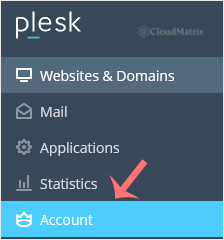
- In the sidebar menu, click Account.
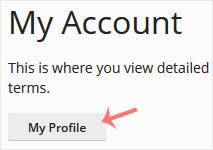
- Click My Profile.
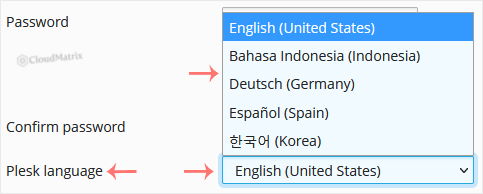
- Scroll down to Interface language and choose the language you want from the drop-down menu. Depending on your Plesk view, this field may instead be labelled Plesk language.
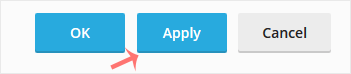
- Click Apply. The interface reloads in your chosen language straight away.
Your Plesk interface language has now been changed.
Good to Know
- Your setting is personal. This preference is stored against your own account and does not change the language for any other user, or the server default.
- A few items may stay in English. Some third-party extension screens and error messages are not fully translated, so the odd label can remain in English even after you switch.
Troubleshooting
The language you want is not in the drop-down menu: only languages installed on the server appear in the list. Ask Noiz support to install the language pack you need, then repeat the steps above.
The interface did not switch after clicking Apply: refresh the page or log out and back in. If it still shows the previous language, clear your browser cache and try once more.
If you are on a Noiz managed hosting plan and would like the change made for you, or you need a language installed that is not yet available, contact Noiz support and the team will take care of it.






