This guide shows you how to change the password you use to sign in to your Plesk control panel, from inside Plesk itself. Use this when you already know your current password and simply want to set a new one. If you have forgotten your password and cannot log in at all, use the password reset option on the Plesk login screen instead.
Last reviewed: 27 July 2026, against Plesk Obsidian 18.0 (latest stable). This guide is written for Noiz hosting and is kept current against Plesk. It complements, and does not replace, the official Plesk documentation linked below.
Official Documentation Reference
Prerequisites
- Your current Plesk sign-in details (username or email address, and current password).
- Access to the Plesk control panel for your Noiz hosting account.
Change your Plesk password
- Log in to your Plesk control panel with your current password.
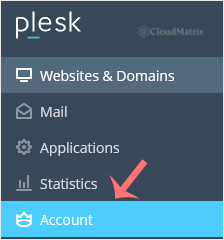
- In the sidebar menu, click Account.
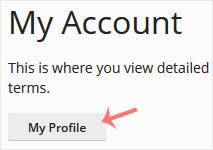
- Click My Profile.
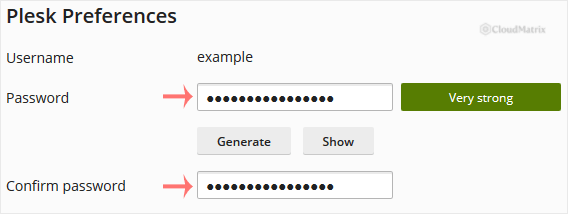
- In the Password field, type the new password you want to use, or click Generate to have Plesk create a strong password for you.
- Click OK to save.
Your password is updated immediately. You can now sign in with the new password.
Good to know
- Plesk enforces a minimum password strength. If you type your own password and it is rejected as too weak, add length and a mix of upper case, lower case, numbers and symbols, or use the Generate button, which always meets the requirement.
- This changes the password for signing in to the Plesk control panel. If you set up separate FTP or database users, those keep their own passwords and are changed separately.
- Choose a unique password you do not use anywhere else, and store it in a password manager rather than a note or browser you share.
Troubleshooting
The new password is rejected as too weak: increase its length and complexity, or click Generate and use the suggested password.
You cannot log in to change the password: this procedure is for changing a password you already know. If you have forgotten it, use the password reset link on the Plesk login screen to receive a reset by email.
If you are on a managed Noiz plan and would rather the Noiz team make this change for you, or you are locked out and the reset email is not arriving, open a support ticket from your Noiz client area and the team will assist.






