Remote backup storage keeps a copy of your website and database backups on a separate server, so a failure of the hosting server does not take your only backups with it. This guide shows you how to point Plesk at an external FTP or FTP(S) server and use it as a backup destination on your Noiz hosting account.
Last reviewed: 27 July 2026, against Plesk Obsidian 18.0 (latest stable). This guide is written for Noiz hosting and is kept current against Plesk. It complements, and does not replace, the official Plesk documentation linked below.
Official Documentation Reference
Prerequisites
- Access to your Plesk hosting account on the Noiz Plesk server, with the Websites & Domains area available.
- A reachable FTP or FTP(S) server to hold the backups, and its hostname or IP address.
- An FTP user name and password for that server, plus a target directory that already exists and is writable.
Configure the FTP(S) Storage in Plesk
- Log in to Plesk on your Noiz hosting account.
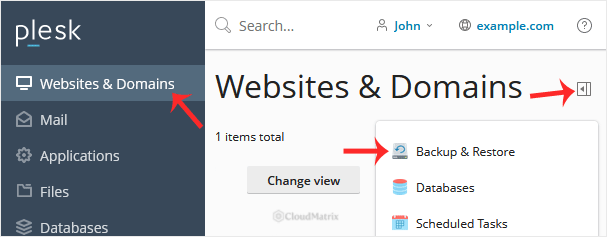
- Go to Websites & Domains and open Backup & Restore.
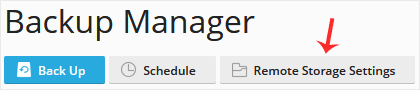
- Click Remote Storage Settings.
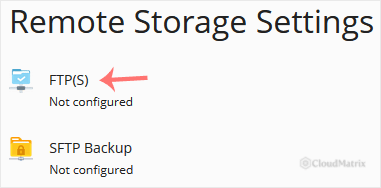
- Click FTP(S).
- Complete the following fields:
- Use FTP(S) storage: tick this so the storage is enabled.
- FTP server hostname or IP address: enter the address of your FTP server.
- Directory for backup files storage: enter the path where backups are written, for example
/backups. The directory must already exist on the FTP server. - FTP user name: enter the user name for the FTP account.
- FTP password: enter the password for the FTP account.
- Use passive mode: enable this unless you have a specific reason not to. Passive mode is usually required when the server sits behind a firewall or NAT, and it avoids most connection problems.
- Use FTPS: tick this only if the remote server supports FTP over TLS. It encrypts the connection so your credentials and backup data are not sent in clear text.
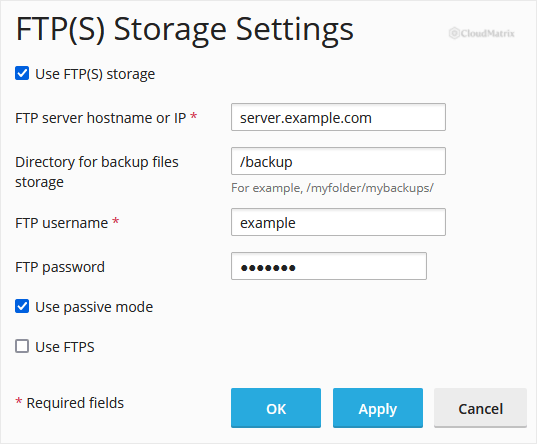
- Click OK to save. In some Plesk builds this button is labelled Apply.
If Plesk shows a success message, the FTP(S) storage is configured. You can now select it as the destination when you create a backup manually, or when you set up a scheduled backup.
Good to Know
- FTPS here means FTP over TLS, not SFTP over SSH. The two are different protocols, and this screen configures FTP or FTP over TLS only.
- Plain FTP sends your user name, password and backup data unencrypted. Where the target server supports it, always tick Use FTPS.
- Run a small manual backup to the FTP(S) storage first to confirm the connection and credentials work, before you rely on it for scheduled backups.
- Remote storage is a destination only. You still create or schedule the backups themselves from Backup & Restore.
Troubleshooting
- Connection failed or times out: check the hostname or IP address, and confirm the FTP server is reachable from the internet. Enable Use passive mode if the connection hangs.
- Authentication failed: re-enter the FTP user name and password, and confirm the account has write access.
- Cannot write to the directory: make sure the path in Directory for backup files storage already exists and that the FTP user can write to it.
If you are on a Noiz managed hosting plan and would like help configuring remote backups or checking your backup schedule, contact Noiz support and the team will assist.






