A full backup captures everything in your Plesk subscription in one archive: your website files, databases, mail, DNS records and the subscription configuration. This guide shows you how to generate a full backup in Plesk and download a copy to your own computer, so you always have a restore point you control.
Last reviewed: 27 July 2026, against Plesk Obsidian 18.0 (latest stable line). This guide is written for Noiz hosting and is kept current against Plesk. It complements, and does not replace, the official Plesk documentation linked below.
Official Documentation Reference
- Plesk Obsidian Customer Guide (see the Backing Up and Restoration section)
Prerequisites
- Access to your Plesk account for the subscription you want to back up.
- Enough free disk space on your account if you store the backup on the server (see the notes at the end).
Generate a Full Backup in Plesk
- Log in to your Plesk account.
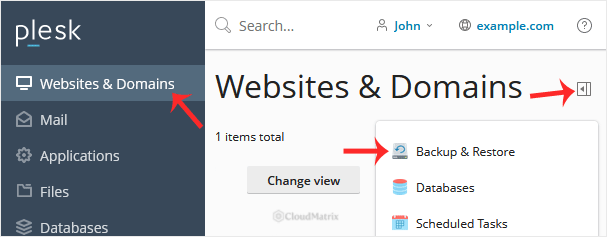
- Go to Websites & Domains, then under the domain you want to back up, open Backup & Restore. This opens the Backup Manager. If you do not see the option straight away, expand the domain's tools using its pull-down (chevron) arrow.
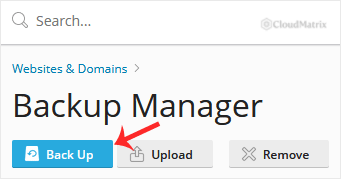
- In the Backup Manager, click Back Up.
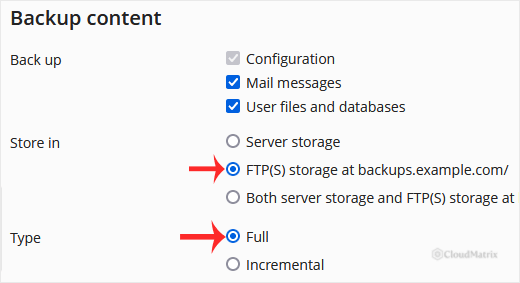
- Set the backup Type to Full. For Store in, choose Server storage if you want to download the backup afterwards. Choose FTP(S) storage only if you have already configured a remote storage location and want the copy kept off the server.
- If you want to be told when the backup finishes, tick When a backup task is completed, send a notification email to and confirm the address.

- Confirm with OK. The backup starts generating in the background, so you can navigate away and carry on working. Larger accounts take longer to complete.
Download Your Backup
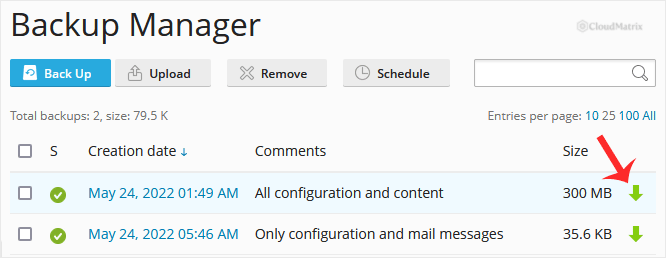
- Go to Websites & Domains > Backup & Restore to return to the Backup Manager.
- In the backup list, click the download icon next to the backup you created.
- To secure the archive, tick Use password protection and set a password, then confirm with OK. This is recommended, because a full backup contains your databases and mail.
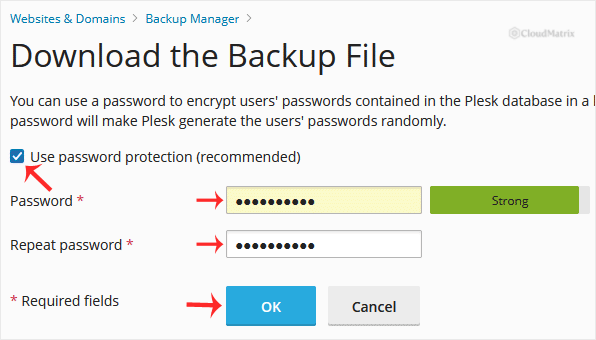
- Your browser prompts you to download the file. Save it somewhere safe on your computer.
Good to Know
- A Full backup is a complete, standalone copy. An Incremental backup only records what changed since the last full backup and depends on it, so keep the full backup it was based on.
- Backups kept in Server storage use your account's disk allocation. Once you have downloaded a backup, remove the copies you no longer need from the Backup Manager to free space.
- FTP(S) storage keeps the archive off the server, which is safer for long-term retention, but you must configure the remote location under Remote Storage Settings before it can be selected.
- On managed Noiz hosting, Noiz also keeps its own server-level backups. Generating your own backup gives you a personal copy you can download, archive or restore from selectively.
Troubleshooting
- FTP(S) storage is greyed out or empty: no remote repository has been set up yet. Add one under Remote Storage Settings, or use Server storage instead.
- The backup fails or stops part way: this is usually low disk space. Free up space (or remove old backups) and try again, or exclude very large content and back it up separately.
If you are on a managed Noiz hosting plan and need a hand creating, downloading or restoring a backup, open a support ticket from your Noiz client area and the team will assist.






