If you run a reseller or server account with WHM, you can require any of your cPanel users to set a new password the next time they log in. This is the fastest way to close off a shared or leaked password across one account or across every account on the server at once, without having to reset each password yourself and then distribute it.
This guide covers the Force Password Change interface in WHM, what the user actually experiences afterwards, and the knock-on effects worth planning for before you tick every box and hit submit.
Last reviewed: 27 July 2026, against cPanel & WHM (the Force Password Change interface is valid for version 82 through the latest release). This guide is written for Noiz hosting and is kept current against cPanel & WHM. It complements, and does not replace, the official cPanel documentation linked below.
Official Documentation Reference
- WHM: Force Password Change
- WHM: Password Modification
- WHM: Password Strength Configuration
- cPanel: Password & Security
- WHM API 1: forcepasswordchange
Prerequisites
- A WHM login with root access, or a reseller account whose privileges include the Force Password Change interface. Resellers only see this interface if the server owner has enabled it under Resellers >> Edit Reseller Nameservers and Privileges.
- The cPanel usernames you intend to target. It is worth listing them before you start, because the interface makes it very easy to select everything.
- A way to reach the account owners (email or phone), so the prompt does not arrive as a surprise.
This guide applies to cPanel & WHM specifically. If your Noiz service uses a different control panel, the equivalent option lives elsewhere and the steps below will not match. Contact Noiz support if you are not sure which panel your plan runs on.
Force a Password Change in WHM
Step 1: Open the Force Password Change interface
- Log in to WHM.
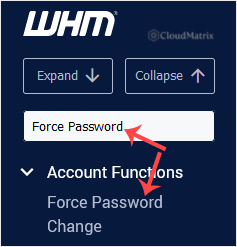
- Go to Account Functions >> Force Password Change. The quickest route is to type
Force Passwordinto the menu filter box at the top left, then click the result.
Step 2: Select the accounts
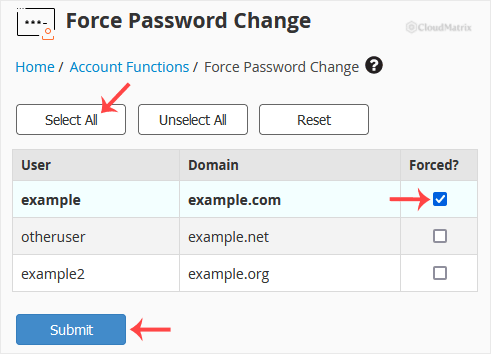
- Tick the Forced? checkbox beside each cPanel user you want to prompt. Select as many as you need.
- To act on everything at once, use the select and deselect buttons at the top of the list rather than ticking each row.
- Click Submit.
The setting takes effect immediately. There is no confirmation email and no grace period to configure.
What the User Sees Next
Nothing changes for the user until they next log in to cPanel. Their current password still works to get in. Once they are in, cPanel presents a password change prompt and withholds full access to the interface until a new password is set. They cannot dismiss it and carry on.
Two details catch people out:
- The Forced? checkbox stays ticked in WHM until that user has actually changed their password. A still-ticked box is not a failed submission, it is an outstanding prompt. Use the interface as a to-do list to see who has complied.
- The prompt is tied to cPanel login. Logging in to an account from WHM using the account entry does not use the account password, so it does not clear the flag. The user has to log in to cPanel directly, or change the password from cPanel >> Password & Security.
Plan the Change Before You Submit It
Forcing a change on a single suspicious account is low risk. Forcing it on every account at once is a different exercise, and these are the things that break.
- Stored credentials stop working. Anything holding the old cPanel password breaks the moment the user changes it: backup tools, deployment scripts, monitoring checks, migration utilities and remote file managers. Warn the account owners so they know to update these too.
- The main FTP account follows the cPanel password. The primary FTP login shares the cPanel account password, so an FTP client saved with the old password will start failing. Additional FTP accounts created inside cPanel keep their own passwords and are unaffected.
- Email account passwords are separate. Forcing a cPanel password change does not touch individual mailbox passwords, so mail clients keep working. If a mailbox itself is compromised, change that mailbox password in cPanel instead.
- Database users and API tokens are separate. MySQL users and any cPanel or WHM API tokens keep working. If the concern is a full compromise rather than a weak password, revoke tokens and rotate database passwords as well.
- SSH keys are unaffected. Key-based SSH access continues to work, which is worth remembering when the goal is to lock someone out rather than tidy up passwords.
- There is no scheduled expiry. cPanel & WHM does not rotate passwords on a timer. The flag you set is a one-off. If you want periodic rotation, repeat this manually or script it.
Set the Password Rules First
Forcing a change is only useful if the replacement password has to be a good one. Before a bulk run, check Security Center >> Password Strength Configuration in WHM. That interface sets the minimum strength score cPanel will accept, both as a default and per feature, so you can raise the bar for everyone in one place. Otherwise a user under pressure will simply replace a weak password with another weak password.
Doing It at Scale
For more than a handful of accounts, or for a rotation you want to repeat, the same action is available through WHM API 1 as the forcepasswordchange call, listed in the API reference linked above. Run it with an API token rather than a stored root password, and test against one account before looping over a server list.
Troubleshooting
Symptom: Force Password Change does not appear in WHM. On a reseller account, the interface is only visible when the server owner has granted it under Resellers >> Edit Reseller Nameservers and Privileges. Ask the server owner to enable it, or use Password Modification if you only need to reset one password directly.
Symptom: the checkbox is still ticked days later. The user has not logged in to cPanel yet, or has only been reaching the account through WHM. Contact them and ask them to log in to cPanel directly and complete the prompt.
Symptom: the user is stuck on the prompt and cannot set a new password. The password they are choosing is failing the strength requirement. Have them use the password generator on the prompt, or lower the requirement in Password Strength Configuration if it has been set unreasonably high.
Symptom: the user cannot log in at all to complete the change. Reset the account password yourself in WHM under Account Functions >> Password Modification, send it to them over a channel you trust, then force the change again so they replace it with something only they know.
Symptom: a website or script broke straight after the change. Something was authenticating with the old cPanel password, most often an FTP deployment or a backup job. Update the stored credential, and consider moving that integration to an API token or SSH key so a future password change does not break it.
Need a Hand?
If you suspect an account has been compromised rather than simply carrying a weak password, forcing a password change is one step of several. Open a ticket with Noiz support from your client area and the team can help you review access, revoke tokens and check for anything left behind.






