WHM (Web Host Manager, sometimes written WebHost Manager) is the administrative control panel that sits above cPanel. Where a cPanel account manages one hosting account, WHM manages the accounts themselves: creating them, setting their packages and limits, suspending them, and reaching the server-level settings that individual cPanel users never see. If your Noiz plan is a reseller, VPS or dedicated server package built on cPanel, WHM is where you spend your administrative time. This guide shows you exactly which address to use, how to log in, and what to do when the login page will not load or will not accept you.
WHM is not part of a standard shared hosting account. If your Noiz plan gives you a single cPanel login and no reseller privileges, there is nothing at port 2087 for you, and the guides in the cPanel section of this knowledgebase are the ones you want. Some Noiz plans run a different control panel entirely, in which case WHM does not apply at all.
Last reviewed: 27 July 2026, against the current stable cPanel & WHM release. This guide is written for Noiz hosting and is kept current against cPanel & WHM. It complements, and does not replace, the official cPanel documentation linked below.
Official Documentation Reference
- How to Log in to Your Server or Account: the vendor reference for every login route, including external authentication and the single-use
whmloginsession URL. - How to Configure Your Firewall for cPanel Services: the authoritative port list for WHM, cPanel, Webmail and the rest.
- WHM Documentation: the full interface reference for every screen you reach after logging in.
- Two-Factor Authentication for WHM: how the six-digit code step is enabled, enforced and recovered.
- cPHulk Brute Force Protection: the mechanism that locks out an IP address after repeated failed logins.
Prerequisites
- A Noiz plan that includes WHM access: reseller, VPS or dedicated server on cPanel & WHM.
- Your welcome email, which carries the server hostname, the server IP address, and your WHM username and password. It is sent once the order is provisioned.
- An outbound network path to port
2087. Most home and office connections have this. Some corporate, school and public networks do not, and the workaround is covered below. - A current browser. WHM is a web application and older browsers fail in ways that look like login problems.
Where Your Login Details Come From
After the order is placed and payment clears, Noiz provisions the account and sends a welcome email containing the details you need. Keep it. The three items that matter are:
- Server hostname: something in the form
server1.yourdomain.com. This is the preferred address to use. - Server IP address: a numeric address such as
198.51.100.25. Useful before DNS is working, and as a fallback. - WHM username and password: for a reseller account the username is your account name. On a VPS or dedicated server it is normally
root.
If you cannot find the welcome email, do not guess. Log in to the Noiz client area and open the service, or raise a ticket. Repeated guessing at a password will get your IP address blocked by the server's brute force protection, which turns a five-minute problem into a longer one.
The WHM Address
WHM does not live at a normal web address. It listens on its own service port, so the port number is part of the URL and cannot be left out.
https://server1.yourdomain.com:2087: the correct address, encrypted. Use this one.http://server1.yourdomain.com:2086: the legacy unencrypted port. It exists for historical reasons and is normally configured to redirect to port 2087. Never enter credentials on a page that has not redirected tohttps.https://198.51.100.25:2087: the same interface reached by IP address. This works before DNS points anywhere, but expect a certificate warning (see below).
Replace server1.yourdomain.com and 198.51.100.25 with the real hostname and IP from your welcome email. They are examples, not live addresses.
For completeness, the related cPanel ports on the same server are 2083 for cPanel accounts and 2096 for Webmail, both over HTTPS. Their unencrypted counterparts are 2082 and 2095.
Hostname or IP Address: Which to Use
Use the hostname whenever it resolves. The server holds a valid SSL certificate issued for its own hostname, so a hostname URL loads cleanly with no warning. An SSL certificate can only ever be issued for a name, never for a bare IP address, so an IP URL will always produce a browser warning along the lines of "Your connection is not private" or "There is a problem with this website's security certificate". The connection is still encrypted, but the browser cannot confirm what it is encrypted to.
That is why the IP address route is a fallback rather than a habit. Use it during initial setup, before the hostname's DNS has propagated, and switch to the hostname as soon as it resolves. If you are ever asked to click through a certificate warning on an address you did not expect, stop and check with Noiz support first.
Once your own domain resolves to the server, https://yourdomain.com:2087 also reaches WHM. It will warn about the certificate for the same reason unless a certificate covering that name has been installed for the service.
How to Log In to WHM
- Open your WHM login URL in a browser, including the
:2087port.

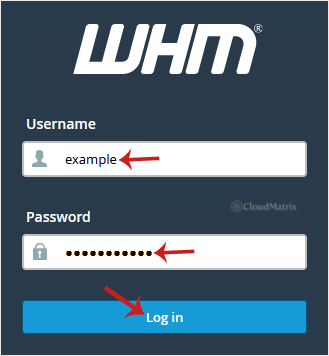
- Enter your WHM Username and Password, then click Log in.
- If the details are correct, WHM opens on its Home screen and you are logged in.
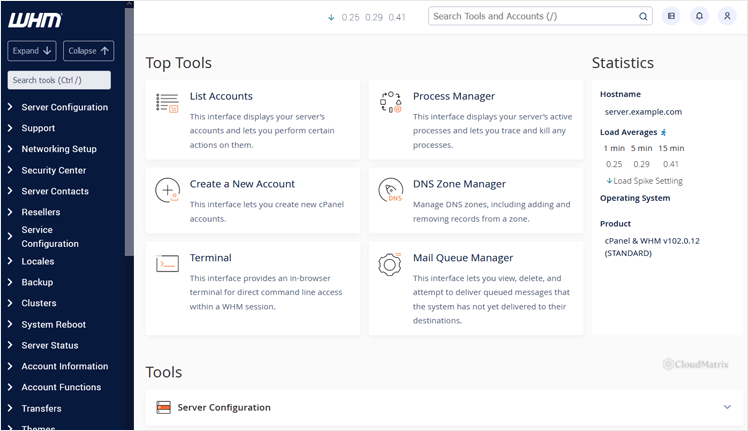
A few things worth knowing about that first screen. WHM's navigation is a long list of grouped features down the left-hand side, and the fastest way through it is the search box at the top of that list rather than scrolling. Typing part of a feature name filters the whole menu instantly, which is how experienced administrators navigate WHM. The layout has shifted between releases, so a screenshot that does not match your screen pixel for pixel is normal; the feature names are stable and the search box finds them regardless of where they have been moved to.
On a brand new server the first root login also presents the initial setup steps, including accepting the licence terms and setting contact details and nameservers. Work through it rather than skipping it, because several later screens assume it has been completed. A reseller account sees none of this, only the subset of features the server owner has granted.
When Port 2087 Is Blocked
This is the single most common reason a WHM login page fails to load, and it is easy to misdiagnose as the server being down. Plenty of corporate networks, school networks, hotel Wi-Fi and mobile data connections permit only ports 80 and 443 outbound. Nothing is wrong with the server; your network will not carry the connection.
Two ways to confirm and work around it:
- Try the standard-port alias. cPanel & WHM answers on the
/whmpath of a domain hosted on the server, for examplehttps://yourdomain.com/whm. This runs over the ordinary HTTPS port 443, so it passes through restrictive firewalls, and it redirects you into the same login screen. - Test from a different connection. Tethering to a mobile phone for one attempt is the quickest way to prove the block is on your side rather than on the server.
If neither works from any connection, the problem is not a local firewall and it is worth raising a ticket with Noiz support.
Two-Factor Authentication
If two-factor authentication is enabled on the account, the password step is followed by a prompt for a six-digit code from your authenticator app. WHM permits only one concurrent session per user when 2FA is active, so logging out in one browser window logs you out everywhere.
Enabling 2FA on a WHM account is strongly worth doing. WHM controls every hosting account on the server, so a compromised WHM password is not a single-site problem. Set it up while you still have working access, and store the recovery detail somewhere other than the device running the authenticator app. Losing the authenticator with no recovery route means a support ticket and identity verification before access is restored.
Security Behaviour You Should Expect
- Failed logins are counted. cPanel & WHM includes brute force protection that temporarily blocks an IP address after repeated failed attempts, and can lock the account itself. If you have been guessing, wait rather than continuing, and contact Noiz support if you are still locked out.
- Sessions are tied to your IP address. If your connection changes address mid-session, which happens on some mobile and consumer connections, WHM ends the session and returns you to the login screen. This is expected behaviour, not a fault.
- Sessions time out. Leaving WHM open in a tab overnight will not keep you logged in. Log in again rather than assuming something has broken.
- The URL contains a session token after login. WHM inserts a segment such as
/cpsess1234567890/into the address once you are authenticated. Never bookmark or share that address; it is specific to the session. Bookmark the plainhttps://server1.yourdomain.com:2087address instead.
Troubleshooting
Symptom: the page will not load at all, or times out. The port is almost certainly blocked on your network. Try https://yourdomain.com/whm or a different connection, as described above.
Symptom: "This site can't be reached" when using the hostname, but the IP address works. DNS for the hostname has not propagated yet, or is pointing elsewhere. Use the IP address for now and let DNS settle.
Symptom: a certificate warning appears. Expected when connecting by IP address, because certificates cannot be issued for IP addresses. Use the server hostname from your welcome email instead and the warning goes away. If a warning appears on the hostname itself, do not click through; raise a ticket.
Symptom: the browser loads something other than WHM. The port number was left off the URL, so the browser went to the website on port 443 instead. Add :2087 to the end of the address.
Symptom: "The login is invalid" despite correct details. Check for a trailing space pasted along with the password, confirm the username is the WHM account name rather than an email address, and confirm you are using WHM credentials rather than a cPanel account's credentials. They are different accounts even when the passwords match.
Symptom: the login is rejected repeatedly and then the page stops responding entirely from your location. Brute force protection has blocked your IP address. Stop attempting, and contact Noiz support with the public IP address you are connecting from.
Symptom: login succeeds but far fewer features appear than expected. You are logged in as a reseller rather than as the server administrator. Reseller accounts see only the features the server owner has granted, which is by design.
Symptom: the interface does not match the screenshots above. cPanel & WHM updates on its own release schedule and the layout changes between versions. Use the search box at the top of the left-hand menu to find any feature by name.
Getting Help
If you cannot reach WHM after working through the checks above, open a ticket in the Noiz client area. Include the exact URL you are trying, the public IP address you are connecting from, the precise wording of any error, and whether the same attempt fails from a second network such as mobile data. That combination is usually enough to tell a network block, a DNS issue and an account lockout apart on the first reply. Noiz support can confirm the service is listening, clear a brute force block, and reset WHM credentials once your identity is verified.






