Your WordPress display name is the name the public sees. It appears as the author byline on posts, next to your comments, in author archive pages and in the greeting on the admin bar. By default WordPress sets it to your login username, which means a fresh install quietly publishes your username on every post you write. This guide shows you how to change it on a WordPress site hosted with Noiz, and explains the one step that trips most people up: you cannot type a display name directly, you have to set a Nickname first.
Last reviewed: 27 July 2026, against WordPress 7.0.2 (latest stable). This guide is written for Noiz hosting and is kept current against WordPress. It complements, and does not replace, the official WordPress documentation linked below.
Official Documentation Reference
- WordPress: Users Profile Screen
- WordPress: Users Screen (editing other accounts)
- WordPress: Roles and Capabilities
- WordPress Developer Reference: wp_update_user()
Prerequisites
- A WordPress site on your Noiz hosting account.
- Login details for the WordPress dashboard at
yourdomain.com/wp-admin(replaceyourdomain.comwith your own domain). - Any role can change its own display name. To change someone else's, you need the Administrator role.
Why a Display Name That Differs From Your Username Is Worth Setting
Signing in to WordPress needs two things: a username and a password. If the display name still matches the login username, every published post hands out half of that pair to anyone who reads the site, and automated login attempts are the single most common form of unwanted traffic a WordPress site receives.
Setting a distinct display name removes the most obvious source of that leak. It is not a security control on its own, and it does not replace a strong password or two-factor authentication, but it costs nothing and it stops the username being published in the byline of every article. It also lets you publish under a proper name such as "Jane Smith" rather than jsmith82, which simply reads better.
Step 1: Log In to the WordPress Dashboard
Go to yourdomain.com/wp-admin and sign in.
Step 2: Open Your Profile
In the left-hand Dashboard menu, go to Users and click Profile.
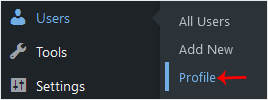
If you are an administrator changing a different account, go to Users and then All Users instead, and click Edit under the account you want. The fields from this point on are identical.
Step 3: Set a Nickname
Scroll down to the Name section and find Nickname. Enter the name you want to publish under.

This step is not optional and it is the part people skip. The Display name publicly as control in the next step is a drop-down, not a text box, and it can only offer values that already exist on your profile: your username, your first name, your last name, the two combined in either order, and your nickname. If you want a display name that is none of those, the nickname field is where you create it.
Nickname is a required field, so it can never be left empty. On a new account it is pre-filled with the username, which is exactly what you are here to change.
Step 4: Choose It Under "Display name publicly as"
Open the Display name publicly as drop-down and select your new nickname.
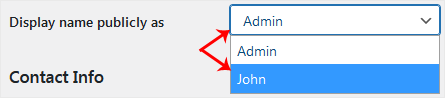
If the new nickname is not listed in the drop-down, save the page first with Update Profile, then reload the profile screen. The new value will be there.
Step 5: Save
Scroll to the bottom of the page and click Update Profile. WordPress confirms with a "Profile updated" notice at the top of the screen.
Open your site in a new browser tab and check a post byline to confirm the change is live.
What Changing the Display Name Does Not Do
This is the part the official documentation leaves implicit, and it matters if your reason for changing the name was privacy rather than presentation.
- It does not change your login username. WordPress deliberately makes
user_loginread-only, and there is no supported way to edit it from the dashboard. If you genuinely need a different username, create a new account with the Administrator role, log in as that account, then delete the old one and choose Attribute all content to the new user when WordPress prompts. Your posts move across intact. - It does not change your author archive URL. Author pages sit at
yourdomain.com/author/{slug}/, and that slug is a separate field derived from the original username. Changing the display name leaves it untouched, so the old username can still be read from the URL. Changing the slug requires either a plugin built for it or a direct database edit. - It does not rename you on existing comments. WordPress stores the author name on each comment record at the moment the comment is posted, so comments you left before the change keep showing the old name. Post bylines, by contrast, are rendered from your live profile and update immediately.
- It does not change your email address or your avatar. Avatars are keyed off the email address on your profile, not the display name.
Troubleshooting
Symptom: The new nickname does not appear in the Display name publicly as drop-down. The drop-down is built when the page loads. Click Update Profile to save the nickname, reload the profile screen, and the option will be available.
Symptom: You saved the profile but the site still shows the old name. This is almost always caching. Clear your WordPress caching plugin, clear any CDN cache in front of the site, then reload the page with a hard refresh. Check the page in a private browsing window to rule out your own browser cache.
Symptom: The byline still shows the username even though the profile is correct. Some themes and page builders print the username or the account's first name rather than the display name. Test with one of the default WordPress themes active to confirm, then raise it with the theme author.
Symptom: There is no Profile entry in the Users menu, or the whole Users menu is missing. Your role does not have the capability, or a membership or security plugin is hiding the menu. Ask an administrator on the site to make the change for you.
Symptom: You cannot reach /wp-admin at all. That is a login or site availability problem rather than a profile one. Confirm the site loads on the front end first, then reset your WordPress password using the Lost your password? link on the login screen.
Need a hand?
If you are on a managed Noiz plan and would rather have the change made for you, or you need help tightening up WordPress logins more broadly, contact the Noiz support team through the client area and the team will assist.






