If you can still log in to your WordPress site, the quickest and safest way to change your password is from the dashboard itself. You do not need a reset email, database access or your hosting control panel. This guide shows you how to change your own password, how an administrator changes someone else's, and what WordPress does behind the scenes once the new password is saved.
Last reviewed: 27 July 2026, against WordPress 7.0.2 (latest stable). This guide is written for Noiz hosting and is kept current against WordPress. It complements, and does not replace, the official WordPress documentation linked below.
Official Documentation Reference
- WordPress Documentation: Users > Your Profile screen
- WordPress Documentation: Users screen
- WordPress Documentation: Resetting your password
Prerequisites
- You can still sign in to the WordPress dashboard. See How to Log In to the WordPress Dashboard and How to Find Your WordPress Login URL.
- A password manager or another safe place to store the new password before you save it.
- To change another user's password, an account with the Administrator role.
If you cannot log in at all, this is not the article you need. Use How to Reset a WordPress Admin Password via phpMyAdmin instead.
Change Your Own WordPress Password
1. Log in to the WordPress dashboard.
2. In the left-hand menu, go to Users and click Profile.
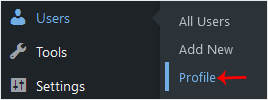
If your account is not an administrator, WordPress hides the Users menu and shows a single Profile item in the sidebar instead. Click that. Either route opens the same screen, and you can always reach it directly at https://yourdomain.com/wp-admin/profile.php (replace yourdomain.com with your own domain).
3. Scroll down to the Account Management section and click Set New Password.
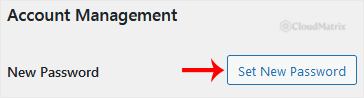
WordPress generates a strong random password and displays it in the box, along with a strength meter. You can type over it with a password of your own, but if the meter reads Weak or Very weak WordPress will make you tick Confirm use of weak password before it lets you save. Do not do that on a live site. A generated password stored in a password manager is the better answer, because you never have to type it.
4. Copy the password to a safe place, then scroll to the bottom and click Update Profile.
Two things about this step catch people out. The password is only shown in plain text on this screen, so copy it before you save. And nothing at all changes until you click Update Profile. Closing the tab at this point leaves the old password in force.
Change Another User's Password as an Administrator
Administrators can reset any account on the site without knowing the current password:
- Go to Users > All Users.
- Hover over the account you want and click Edit.
- Scroll to Account Management and click Set New Password.
- Copy the generated password, then click Update User.
WordPress emails the account holder to say their password was changed, but it does not email them the new password. Send it to the user over a channel that is not the site itself, and ask them to change it again once they are in. Better still, use Send Reset Link in the same section where it is available, so the user sets a password you never see.
What Happens After the Password Changes
- Other sessions are signed out. Any other browser, phone or device signed in to that account is logged out. You stay signed in on the browser you used to make the change. If you only want to clear other devices without changing the password, use Log Out Everywhere Else in the Sessions row of the same profile screen.
- A notification email goes out. WordPress sends a "password changed" notice to the account's email address, and to the site administrator's address. If that email never arrives, the site's outbound mail is not working, which is worth fixing before you rely on password reset links.
- Application passwords survive. Application passwords, used by mobile apps and API integrations, are separate credentials and are not revoked when you change your login password. If you are changing the password because the account may have been compromised, go to Application Passwords on the same profile screen and revoke everything you do not recognise.
- Saved logins go stale. Browser-stored passwords, backup plugins and staging copies that use the same credentials will keep offering the old password. Update them so failed logins do not trigger your security plugin's lockout rules.
Troubleshooting
Symptom: The Set New Password button does nothing. This is almost always a JavaScript error from a plugin or theme conflict. Open your browser console, or temporarily switch to a default theme with plugins disabled, and try again.
Symptom: You save the profile and the password is unchanged. Check for a warning at the top of the screen. WordPress refuses the save if the two password fields do not match, and it will not accept a weak password unless the confirmation box is ticked.
Symptom: You are logged out immediately after saving. Some security plugins force a fresh login after any credential change. Sign back in with the new password. If the new password is rejected, the save did not complete, so use the database reset route linked above.
Symptom: The new password is rejected at the login screen even though it saved. Check that a security plugin has not locked your IP address after earlier failed attempts, and confirm you are logging in to the right site if you run a staging copy on the same domain.
Symptom: You cannot reach the profile screen because two-factor authentication is failing. See How to Set Up Two-Factor Authentication (2FA) in WordPress with All-In-One Security (AIOS) for recovery options.
Good Practice
Change the password from the dashboard whenever you suspect it has been shared, reused elsewhere, or typed on a machine you do not control. Give every person who works on the site their own account rather than sharing one login, so a password change never locks out three other people at once. For a wider hardening pass, work through the WordPress Security Checklist.
If you are locked out of your WordPress site entirely, or you think an account has been compromised, open a ticket from your Noiz client area. Noiz support can help you regain access and review the site for anything left behind.






