An A record is the DNS entry that points a domain or a subdomain at an IPv4 address. It is what tells the rest of the internet which server answers for yourdomain.co.za or blog.yourdomain.co.za. This guide shows you how to add one from the Zone Editor in cPanel, and explains the details that decide whether the record actually works: which nameservers are in charge, how cPanel expands the Name field, and how long the change takes to reach visitors.
Last reviewed: 27 July 2026, against cPanel & WHM 136 (Jupiter theme, the current default). This guide is written for Noiz hosting and is kept current against cPanel. It complements, and does not replace, the official cPanel documentation linked below.
Official Documentation Reference
- cPanel Zone Editor: the vendor reference for every record type the Zone Editor supports, including the advanced Manage view.
- RFC 1035: the DNS specification that defines record types, names and TTL behaviour, if you want the underlying detail.
Prerequisites
- A hosting account with cPanel access, and your cPanel login details.
- The IPv4 address you want the record to point at. If it is the server your site is already hosted on, you can read it in cPanel from the right-hand sidebar under General Information > Shared IP Address, or from your Noiz welcome email.
- The domain's DNS must be answered by the nameservers of this cPanel server. See the check below before you change anything.
Before You Start: Confirm Who Controls the DNS
This is the single most common reason an A record appears to do nothing. cPanel only edits the DNS zone stored on that server. If the domain's authoritative nameservers point somewhere else, for example a registrar's own DNS or a CDN provider, the zone you edit in cPanel is never consulted and your change has no effect.
For Noiz client hosting, the nameservers on the domain should be:
ns1.noiz.co.za
ns2.noiz.co.za
Check what the domain is actually using from any terminal:
dig +short NS yourdomain.co.zaOn Windows, use nslookup -type=ns yourdomain.co.za instead. If the answer is not the nameservers of the server hosting your cPanel account, change the nameservers at your registrar first, or add the A record in whichever DNS service is authoritative. Nameserver changes themselves take time to settle, so allow for that before you judge the result.
Step 1: Log in to cPanel
Sign in to your cPanel account. If your control panel does not look like the screenshots below, your hosting may run a different control panel, in which case DNS is edited elsewhere. Open a ticket with Noiz support and the team will point you at the right place.
Step 2: Open the Zone Editor
- Find the Domains section on the cPanel home screen.
- Click Zone Editor.

Tip: the quickest route is the search box at the top of the cPanel home screen. Type zone and the Zone Editor appears immediately.
Step 3: Find the Domain You Want to Edit
The Zone Editor lists every domain on the account: your main domain, plus any addon domains, subdomains and aliases. Each row has a set of actions on the right.
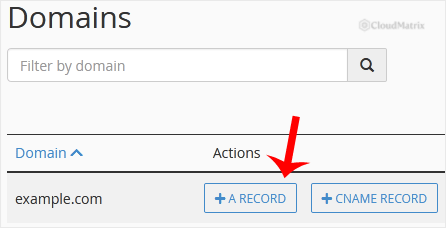
The quick-add buttons (+ A Record, + CNAME Record, + MX Record) create a single record with the zone's default settings. Manage opens the full zone, where you can see every existing record, edit or delete entries, and set a custom TTL. For a straightforward A record, the quick-add button is all you need.
Make sure you are working on the correct row. Each domain on the account has its own zone, and adding the record to the wrong one is an easy mistake to make when several domains share a screen.
Step 4: Add the A Record
- On the row for your domain, click + A Record. A dialogue box opens.
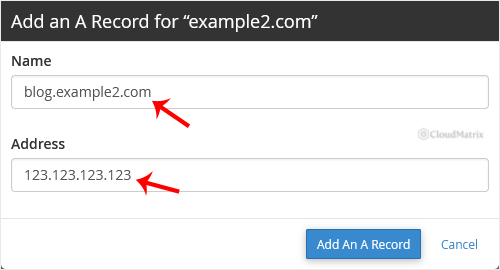
- Complete the two fields:
- Name: the hostname the record is for. Enter just the label, for example
blog, and cPanel appends the domain automatically to produceblog.yourdomain.co.za. To create a record for the domain itself, enter the full domain with a trailing full stop, for exampleyourdomain.co.za. - Address: the IPv4 address the hostname should resolve to, for example
203.0.113.25.
- Name: the hostname the record is for. Enter just the label, for example
- Click Add An A Record.
The record is written to the zone straight away and appears in the Manage view for that domain.
The Trailing Full Stop Gotcha
cPanel treats a name without a trailing full stop as relative to the zone. Typing blog.yourdomain.co.za (no trailing stop) therefore creates blog.yourdomain.co.za.yourdomain.co.za, which resolves for nobody. Either enter the short label on its own (blog), or enter the complete name with the trailing full stop (blog.yourdomain.co.za.). If a new record refuses to resolve, this is the first thing to check in the Manage view.
What the Record Does and Does Not Do
- A records are IPv4 only. For an IPv6 address, add an AAAA record instead. The Zone Editor accepts both, but not in the same record.
- An A record does not create a website. It only answers a DNS question. If you want a subdomain to serve files from your own hosting account, create it under Domains in cPanel so that the document root and the DNS entry are made together. Use a bare A record when you are pointing a name at something that already exists elsewhere, such as a separate application server or a third-party service.
- A name cannot have both an A record and a CNAME. If the hostname already has a CNAME, delete it in Manage before adding the A record, otherwise resolution is undefined and cPanel may reject the entry.
- Two A records with the same name are legal. DNS will hand out both addresses in rotation, which is rarely what you intended. If you are repointing a name, edit the existing record rather than adding a second one.
- Some records are managed by the server. System entries in the zone are locked and cannot be edited from the Zone Editor. If you need one of those changed, ask Noiz support.
TTL and Planned Moves
The quick-add button uses the zone's default TTL, commonly 14400 seconds (four hours). The TTL is how long resolvers around the world are allowed to cache the answer, so it sets the pace of any future change to that record. If you know you are moving a site to a new IP address soon, open Manage a day beforehand, lower the TTL on the record to 300 (five minutes), let the old value expire, and then make the switch. The cutover will then be near-instant for most visitors. Raise the TTL again once the move is settled.
Step 5: Verify the Record
Do not wait for propagation to find out whether you typed it correctly. Query the authoritative nameserver directly, which skips every cache in between:
dig +short blog.yourdomain.co.za A @ns1.noiz.co.zaIf that returns your IP address, the record is correct and everything from here is caching. To see what the wider internet is currently getting, query a public resolver:
dig +short blog.yourdomain.co.za A @1.1.1.1How Long Propagation Takes
A brand new hostname that has never been looked up before is usually live within minutes, because there is no old answer cached anywhere. Changing an existing record takes longer: resolvers keep serving the previous address until the TTL expires. In practice most of the world updates inside a few hours, and the traditional advice to allow up to 24 to 48 hours covers the slowest resolvers and any device holding its own cache.
Your own machine is often the last to notice. Flush the local DNS cache (ipconfig /flushdns on Windows, sudo resolvectl flush-caches on most Linux systems) and restart the browser before concluding that the change has failed.
Troubleshooting
- The record saves but nothing resolves: the domain is almost certainly using different authoritative nameservers. Run the
dig +short NS yourdomain.co.zacheck from the top of this guide. - The hostname resolves to a doubled name: the trailing full stop was missing when the record was created. Delete the record in Manage and add it again using just the short label.
- cPanel refuses to add the record: a conflicting CNAME usually exists for the same name. Open Manage, filter for the hostname, and remove the conflicting entry first.
- Old visitors still land on the previous server: the previous answer is still cached. Wait out the TTL that was in force before the change, not the new one.
- The website shows the wrong site or a default page after the change: DNS is now correct but the destination server is not configured to answer for that hostname. The A record gets traffic to the server; the server still needs a matching site or virtual host.
- Email stops working after repointing the domain: mail follows the MX records, not the A record, but MX records often point at a hostname that you have just moved. Check the MX entries in Manage after any change to the root record.
If you are on a Noiz managed plan, or you are unsure which nameservers your domain should be using, open a support ticket with the hostname and the IP address you want it to point at, and the Noiz team will set the record up and confirm it resolves.






