This guide shows you how to delete email messages in Mozilla Thunderbird, how to get a message back when you delete it by accident, and how to make sure the space really is freed on your Noiz mailbox. It is written for Noiz email clients using Thunderbird on a desktop or laptop. People describe this task in several ways: deleting a message, removing an email, throwing mail in the bin, or clearing out an inbox. They all mean the same thing here. Deleting looks like a single click, and most of the time it is, but what happens behind that click depends entirely on whether your account is set up as IMAP or POP. That one distinction decides whether the message disappears from your phone and webmail too, and whether your mailbox quota actually goes down. The sections below cover the click, and then the part nobody explains.
Last reviewed: 27 July 2026, against Thunderbird 140 ESR and the current monthly Release (version numbers in the 140s). This guide is written for Noiz hosting and is kept current against Thunderbird. It complements, and does not replace, the official Thunderbird documentation linked below. Thunderbird's menu wording and toolbar layout shift a little between versions, so a label may sit slightly differently in your copy; the sequence and the behaviour described here hold across recent versions.
Official Documentation Reference
- Mozilla Thunderbird Support (home): the official help hub. If a menu label in your version differs from the wording used here, search this site for the current term.
- IMAP Synchronization (Mozilla Support): explains how Thunderbird keeps its local copy in step with the server, which is the mechanism behind everything in the "What Deleting Actually Does" section below.
- Compacting Folders (Mozilla Support): the reference for why deleted mail can still occupy disk space, and how compacting clears it.
- Archived Messages (Mozilla Support): covers the Archive function, which is often what you actually want when you are only trying to tidy an inbox.
- Thunderbird and Junk / Spam Messages (Mozilla Support): the difference between marking mail as junk and deleting it, and why the distinction matters for future filtering.
Prerequisites
- Thunderbird is installed and your Noiz mailbox is already set up in it. If it is not, start with How to Add an Email Account in Mozilla Thunderbird.
- You know whether the account is IMAP or POP. This single fact decides what deleting does to your mail. To check, open Account Settings, click Server Settings beneath the account name, and read the Server Type line.
- You are online if the account is IMAP, so that the deletion is passed to the server rather than queued.
What Deleting Actually Does
Deleting a message in Thunderbird is not one behaviour, it is two, and which one you get depends on the account type. This is the part worth reading before you start clearing anything out in bulk.
IMAP: the deletion travels to the server
Noiz client mailboxes are normally set up as IMAP, which means the master copy of every message lives on the Noiz mail server and Thunderbird shows you a synchronised local view of it. When you delete a message in an IMAP account, Thunderbird tells the server to move it to the Trash folder on the server. The change then appears everywhere else the mailbox is open: webmail, your phone, a tablet, a second computer. That is normally exactly what people want, but it does mean a bulk clear-out on your laptop empties your phone as well, so be deliberate about it.
POP: the message is only removed from this computer
A POP account works the other way round. POP downloads messages onto your computer, and deleting one afterwards removes it from Thunderbird on that machine only. The copy on the server is untouched by the delete, so if the account is configured to leave mail on the server, the message is still sitting in your Noiz mailbox and still counting against your quota. This surprises people who spend an afternoon deleting thousands of messages in Thunderbird and then find their mailbox is just as full as before. If that is your situation, log in to webmail and delete there as well, or move the account to IMAP so the two stay in step.
Deleting is not the same as unsubscribing or blocking
Deleting removes one message. It does not stop the sender writing to you again, and it does not teach any filter anything. If you want the sender to stop, unsubscribe or block; if you want future messages of that kind sorted away automatically, use a filter rather than a daily delete. How to Organise Your Email with Folders and Filters in Thunderbird covers that side of it.
Step 1: Open Thunderbird and Select the Folder
Open Mozilla Thunderbird from your desktop, taskbar, Start menu, or Applications folder. In the folder list on the left, click the folder holding the message you want to remove, usually Inbox under the relevant account. The message list fills the middle pane.

If you have several accounts set up, check the account heading above the folder before you delete anything. The folder list stacks accounts one under another, and inboxes look identical at a glance, so it is easy to be looking at the wrong one.
Step 2: Right-Click the Message and Choose Delete
In the message list, right-click the message you want to remove, then click Delete Message on the context menu. The message disappears from the list immediately and moves to Trash.
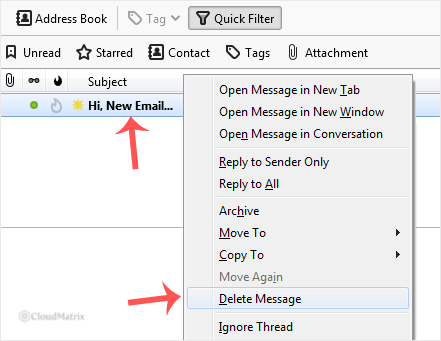
Thunderbird does not ask you to confirm an ordinary delete. That is by design, because the message goes to Trash rather than vanishing, and Trash is recoverable. The section on undoing a delete below covers how to get it back.
Other Ways to Delete
The right-click route is the clearest one to learn first, but there are quicker options once you are comfortable:
- The Delete key. Select a message in the list and press Delete. This is the fastest way to work through a batch one at a time.
- The toolbar button. With a message selected or open, click the Delete button (the bin icon) on the message toolbar.
- Several messages at once. Click the first message, then hold Ctrl (Cmd on macOS) and click each additional message to pick out a scattered selection. To take a continuous run, click the first message, hold Shift, and click the last. Then press Delete once and the whole selection goes.
- Everything in a folder. Click any message in the list, press Ctrl + A (Cmd + A) to select all, then press Delete. Treat this one with respect, especially on IMAP, because it clears the folder on the server too.
One caution on bulk deletion over IMAP: a very large selection can take a while to process, because every deletion has to be sent to the server. Let Thunderbird finish rather than closing it partway through, or the folder can be left looking inconsistent until the next synchronisation catches up.
Undoing a Delete
If you delete the wrong message, press Ctrl + Z (Cmd + Z on macOS) straight away, or use Edit > Undo. The message returns to the folder it came from.
If you have already carried on doing other things and undo no longer helps, open the Trash folder in the left-hand list. Deleted messages sit there until the Trash is emptied. Find the message, then drag it back to Inbox or whichever folder it belongs in, or right-click it and use Move To. On an IMAP account this works from any device, so a message deleted on your laptop can be rescued out of Trash in webmail.
The one case where this does not apply is a permanent delete, described below.
Emptying the Trash and Freeing Mailbox Space
Deleting a message moves it to Trash. It does not remove it from your account. On an IMAP mailbox, everything in Trash still lives on the Noiz mail server and still counts towards your mailbox quota. This is the most common reason a mailbox stays full after a long clear-out.
To empty it, right-click the Trash folder in the folder list and choose Empty Trash. Thunderbird asks you to confirm, because this step genuinely is permanent: messages removed this way are not recoverable from Thunderbird, and Noiz cannot restore individual messages you have purged from your own mailbox. Check the contents of Trash before you confirm.
You can also have Thunderbird do this for you. In Account Settings > Server Settings for the account, tick Empty Trash on Exit so the folder is cleared every time you close the program. It keeps the mailbox tidy without any thought, though it also removes your safety net, so only enable it if you are confident you will not need to fish anything back out.
Compacting: Why Deleted Mail Can Still Take Up Disk Space
There is a second, quieter reason space does not come back. Thunderbird stores messages in large container files, and when you delete a message it is marked as removed inside that file rather than being cut out of it. The space is only genuinely reclaimed when the folder is compacted. Until then, a folder you have emptied can still be occupying the same amount of disk as before.
To do it manually, right-click a folder and choose Compact, or use File > Compact Folders to process everything at once. Thunderbird also prompts you automatically once enough recoverable space builds up. Say yes when it asks. Compacting affects local storage on your computer; it is not the same thing as freeing server quota, which is what emptying Trash does. On a busy mailbox you generally want both.
Deleting Permanently in One Step
To bypass Trash entirely, hold Shift while pressing Delete. The message is removed immediately with no copy kept in Trash and nothing to recover. Thunderbird may warn you the first time, but it will not keep asking.
This is useful for obvious rubbish you never want to see again, and it is worth knowing about mainly so you understand why a message you deleted is sometimes not in Trash. Avoid it as a habit. The few seconds saved are not worth losing a message you turn out to need, and it is easy to press Shift by accident when you are selecting a run of messages.
When Deleted Messages Stay in the Folder with a Line Through Them
Some IMAP setups do not move deleted mail to Trash at all. Instead they flag the message as deleted and leave it in place, shown greyed out or struck through, until the folder is purged. If that is what you are seeing, the account is set to mark messages rather than move them.
You can change it. Open Account Settings, click Server Settings under the account, and look at When I delete a message. The options are:
- Move it to this folder (normally Trash): the standard behaviour described throughout this guide, and the one to choose if you want deleting to feel like every other mail program.
- Just mark it as deleted: the message stays in the folder, flagged, until you purge. Use File > Compact on the folder to clear the flagged messages out.
- Remove it immediately: no Trash and no flag, gone at once. This carries the same risk as a Shift-delete, applied to every deletion you make.
Noiz mailboxes work correctly with all three, so this is purely a matter of how you prefer Thunderbird to behave. The Best Thunderbird Settings to Configure First covers this setting alongside the other choices worth making early.
Delete, Archive or Junk: Choosing the Right One
Deleting is not always the right tool, and picking the correct one saves a lot of regret later.
- Delete when the message has no future value: notifications you have read, duplicates, obvious rubbish. It frees quota once Trash is emptied.
- Archive when you only want the message out of your inbox but might need it again. Select it and press A, or click Archive. It moves to a dated archive folder, stays searchable, and is still there in a year. Archiving does not free any space, since the mail is only moved, but that is usually the point.
- Junk when the message is spam. Marking it as junk teaches the filter and helps similar mail get caught in future; simply deleting spam teaches it nothing. Mark first, then delete or let the junk folder handle it.
Troubleshooting
Symptom: deleted messages come back after a few minutes. The deletion did not reach the server. Check you are online, then use File > Get New Messages to force a synchronisation. If the account is showing an authentication error, the password will need re-entering before any change can be pushed up.
Symptom: the mailbox is still full after deleting a lot of mail. The Trash folder is almost certainly still holding it, and on IMAP that counts against your quota. Right-click Trash and choose Empty Trash. Check any Junk, Sent and Archive folders as well, since those fill up quietly and are easy to forget.
Symptom: deleting in Thunderbird makes no difference to the mailbox at all. The account is POP, so deletions are local only. Delete in webmail as well, or reconfigure the account as IMAP.
Symptom: the disk on the computer has not freed up. Run File > Compact Folders. Deleted mail keeps occupying disk space until the folder is compacted.
Symptom: messages are struck through instead of disappearing. The account is set to Just mark it as deleted. See the section above to change the setting or to purge the flagged messages.
Symptom: a message vanished and is not in Trash. Either it was deleted with Shift held down, or the account is set to remove messages immediately. Check Server Settings to confirm which, and adjust the setting if the behaviour was not what you intended.
Symptom: the deletion happened on your phone as well, and you did not expect it. That is normal IMAP behaviour. Every device sees the same mailbox, so a deletion anywhere applies everywhere. Restore from Trash if the Trash has not been emptied.
Getting Help from Noiz
Noiz can help with anything on the server side of this: checking your mailbox quota, confirming whether the account is set up as IMAP or POP, and investigating mail that is not synchronising correctly. Open a ticket from the client area and include the email address concerned and a short description of what you deleted and what you expected to happen. Be aware that once messages are purged from your mailbox they are gone from the server, so raise any suspected deletion problem promptly rather than after emptying the Trash. If you are on a managed plan, Noiz can review the account configuration with you and set the delete behaviour to suit how you work.






