Softaculous is the one-click application installer built into cPanel. It automates the setup of popular web applications such as WordPress, Joomla, Drupal, Magento and hundreds of others, handling the files, the database and the configuration for you, so there is no manual installation to do. This guide shows you how to open Softaculous from your cPanel account and what to expect once it loads.
Last reviewed: 27 July 2026, against the current cPanel Jupiter theme and the Softaculous Apps Installer plugin. This guide is written for Noiz hosting and is kept current against cPanel and Softaculous. It complements, and does not replace, the official documentation linked below.
Official Documentation Reference
Prerequisites
- An active Noiz hosting plan that uses cPanel.
- Your cPanel username and password, from your welcome email or the Noiz client area.
- Softaculous enabled on the server. It is a server-side plugin, so it either appears for every account on that server or for none. If it is missing entirely, that is a server setting rather than something you can switch on yourself.
Open Softaculous from cPanel
- Log in to your cPanel account.
- Scroll to the Software section and click Softaculous Apps Installer.

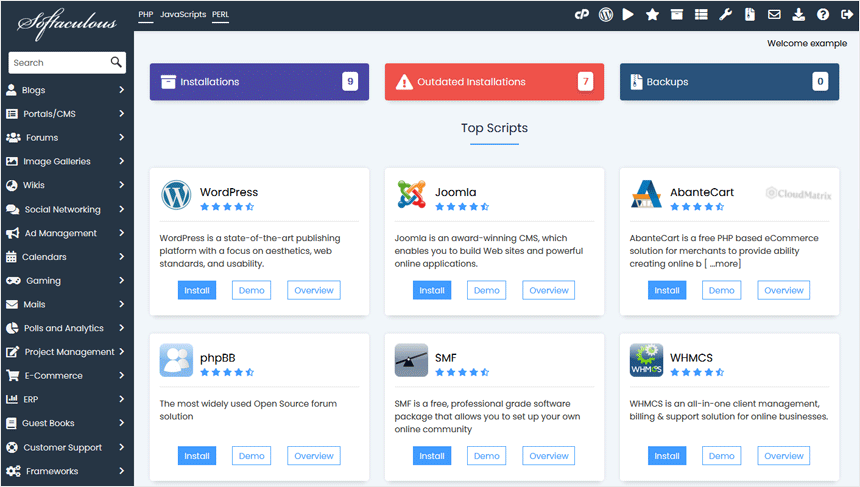
- cPanel opens the Softaculous interface inside the panel, with the application categories down the left side and the most popular installers on the front page.
Faster route: instead of scrolling, type Softaculous into the search box at the top of the cPanel home page. The Jupiter theme filters the tool tiles as you type and the installer appears after a few characters. This is the more reliable way to find it, because the home page sections can be reordered or renamed.
If the Icon Is Named Something Else
The tile is not always labelled the same way. Depending on the cPanel version and how the panel has been branded, the same tool can appear as any of the following, and all of them open Softaculous:
- Softaculous Apps Installer
- Softaculous
- Script Installer or Apps Installer
- A grouped Softaculous block that lists individual applications, such as WordPress, Joomla and PrestaShop, as their own icons. Clicking any one of those opens Softaculous with that application already selected.
Return to cPanel
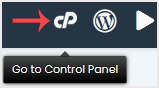
Softaculous runs inside the cPanel frame, so the browser back button can behave oddly and drop you part way through an installer form. To leave cleanly, click the cPanel icon in the Softaculous toolbar and you go straight back to the cPanel home page.
What to Do Next
Once Softaculous is open, choose an application and click Install. Softaculous asks for a short set of details, then does the rest automatically:
- Protocol and domain: pick
https://if the domain already has a working SSL certificate, then select the domain or subdomain you are installing onto. - Directory: this is the single field people get wrong. Leave it empty to install at the root of the domain, for example
yourdomain.com(replace with your own domain). Softaculous pre-fills it with something likewp, which would put the site atyourdomain.com/wpinstead. Clear the field unless you genuinely want the application in a subfolder. - Administrator account: set a username that is not
admin, and a long, unique password. This login is exposed to the internet from the moment the install finishes. - Database name and prefix: the defaults are fine. Softaculous creates the database and the database user for you.
Installation usually takes under a minute. Softaculous then shows the site address and the administration URL, and it emails them to you if you fill in the notification address.
Troubleshooting
Symptom: there is no Software section and searching for Softaculous returns nothing. Softaculous is not installed on that server, or your plan does not include it. Contact Noiz support to confirm what is available on your account.
Symptom: the Softaculous page loads blank, or spins forever. This is usually a browser extension or an ad blocker interfering with the framed interface. Try a private or incognito window first, then a different browser, before reporting a fault.
Symptom: the installer refuses to continue because the target directory is not empty. Softaculous will not overwrite existing files. Either choose a different directory, or clear the existing contents in File Manager first, taking a backup before you delete anything.
Symptom: the install fails partway and leaves files behind. Open the Softaculous Installations list, remove the broken entry so the files and database are cleaned up, then run the install again rather than installing a second copy on top.
A Note on WordPress
Some cPanel servers also carry WordPress Toolkit alongside Softaculous. Both will install WordPress, and neither one manages sites created by the other, so pick one and stay with it for a given site. Softaculous is the better choice when you want a single installer covering hundreds of different applications. WordPress Toolkit is stronger for ongoing WordPress work such as cloning, staging and bulk plugin updates across many sites.
For background on what Softaculous can do beyond installing, see What is Softaculous. If your plan does not show Softaculous, or you would rather an application was installed and configured for you, contact Noiz support and the team will set it up on your behalf.






