Global Email Filters in cPanel apply mail-handling rules to every email account on your cPanel account at once, rather than to a single mailbox. Editing a global filter lets you change the conditions it matches, or the action it takes, without deleting and rebuilding it from scratch. This guide shows you how to open an existing global filter and save your changes.
Global Email Filters (account-wide) are separate from Email Filters (which apply to one mailbox only). If you cannot find the filter you are looking for, check whether it was created as a per-mailbox filter instead.
Last reviewed: 27 July 2026, against the current stable release of cPanel & WHM. This guide is written for Noiz hosting and is kept current against cPanel. It complements, and does not replace, the official cPanel documentation linked below.
Official Documentation Reference
Prerequisites
- Access to your cPanel account.
- At least one existing global filter listed under Current Filters. If none exists yet, create one first, then return here to edit it.
Edit a Global Email Filter
- Log in to your cPanel account.
- In the Email section, click Global Email Filters.

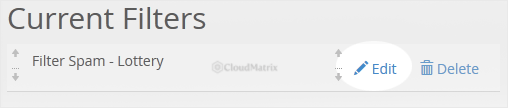
- Under Current Filters, cPanel lists every existing global filter. Click Edit next to the one you want to change.
- Make your changes. You can rename the filter, adjust the Rules (the conditions a message must match), and change the Actions cPanel takes when a message matches.
- Click Save.
Good to Know
- Changes apply to new mail only. Editing a filter affects messages that arrive after you save. Mail already delivered to a mailbox is not re-filtered.
- Rule order matters. Within a filter, cPanel evaluates the rules from top to bottom, and the and / or logic between them decides whether they must all match or any one. If a filter is not behaving as expected, check the order and that logic first.
- Global versus per-mailbox. A global filter runs for every address on the cPanel account. If you only want the rule to affect one address, edit that mailbox's Email Filters instead.
- Test before you rely on it. Use the Filter Test box on the Global Email Filters page to paste a sample message and confirm the edited filter matches, or ignores, it as intended.
Need a Hand?
If a global filter is discarding mail you expected to receive, or you are not sure whether a rule should be global or per-mailbox, the Noiz support team can review your filter setup. Open a support ticket from your Noiz client area and include the filter name and an example message.






