You cannot stop spam reaching the mail server entirely, but you can decide what happens to it once it arrives. A global email filter in cPanel lets you match messages on their content and then discard, redirect, or file them automatically. Because it is created at account level, one global filter applies to every mailbox on the cPanel account at once, so you do not have to repeat the same rule for each address.
Global email filters are sometimes called account-level filters. They are different from the per-mailbox Email Filters tool, which affects only a single email account. Use a global filter when you want the same rule to protect the whole account; use a per-mailbox filter when only one address needs it.
Last reviewed: 27 July 2026, against the current cPanel & WHM interface (Jupiter theme). This guide is written for Noiz hosting and is kept current against cPanel. It complements, and does not replace, the official cPanel documentation linked below.
Official Documentation Reference
- Global Email Filters: the account-level interface used in this guide.
- Email Filters: filters for a single mailbox only.
- How to Configure Email Filters: the full list of rule fields, comparison operators and actions.
Prerequisites
- A hosting account with cPanel access (included with all Noiz cPanel plans).
- Your cPanel sign-in details.
Open Global Email Filters
- Log in to your cPanel account.
- In the Email section, click Global Email Filters.

Create a New Filter
- Click Create a New Filter.
- Enter a name for the filter in the Filter Name box. Choose something you will recognise later, for example
Discard Lottery Scams.
Define the Rule
A rule has three parts: the part of the message to inspect, how to compare it, and the value to match. To act on any message whose body contains a word such as Lottery, select Body in the first list, select contains in the second list, and type the word in the value box.
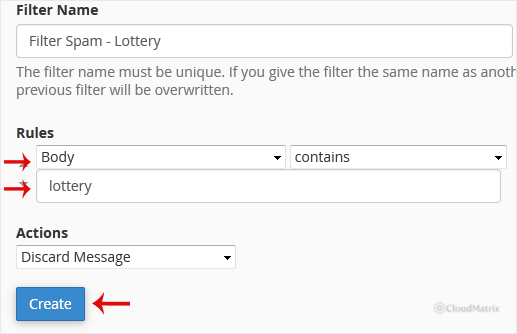
You can inspect other parts of the message instead of the body, such as From, Subject or To, and you can use operators such as equals, begins with, ends with or matches regex for more precise matches. Click + to add further conditions when you need to match on more than one criterion.
Choose the Action
From the Actions drop-down, choose what happens to a matching message. To silently delete it, select Discard Message, then click Create.
Before you discard: Discard Message deletes the email with no bounce and no notice to the sender, so a legitimate message caught by an over-broad rule is gone without trace. For spam handling it is often safer to choose Deliver to Folder and send matches to a dedicated folder you can review, or Redirect to Email to route them elsewhere. Use Discard Message only once you are confident the rule matches spam and nothing else.
How Global Filters Are Applied
- A global filter runs against mail for every mailbox on the account, so a single rule covers all current and future addresses.
- Rules are processed from the top of the list downward. Order matters: a message that has already been discarded by an earlier rule is not seen by later ones.
- Global filters run before any per-mailbox Email Filters, which are evaluated afterwards for the specific address.
Test the Filter
The Global Email Filters page includes a Filter Test box. Paste a sample message into it and run the test to confirm the rule behaves as expected before you rely on it. This is the safest way to check a discard rule, because you can prove what it catches without losing real mail.
Troubleshooting
Symptom: legitimate mail has stopped arriving. Review your global filters for an over-broad rule (for example Body contains a very common word) and either narrow the condition or change the action from Discard Message to Deliver to Folder so you can inspect what is being caught.
Symptom: the filter only affects one mailbox. You may have created it under the per-mailbox Email Filters tool instead of Global Email Filters. Recreate it under Global Email Filters to apply it account-wide.
If you are on a Noiz managed plan and want help building or tuning spam filters for your account, contact Noiz support and the team will assist.






