BoxTrapper is a challenge-response spam filter in cPanel. When it is enabled on an email address, any sender who is not already on your whitelist receives an automated verification message and must respond to it before their email reaches your inbox. Mail from senders who never verify stays held in a queue. This guide shows you how to enable BoxTrapper on a cPanel mailbox, explains the trade-offs before you switch it on, and points you to the configuration screens you will use afterwards.
Last reviewed: 27 July 2026, against cPanel version 136 (current RELEASE tier). This guide is written for Noiz hosting and is kept current against cPanel. It complements, and does not replace, the official cPanel documentation linked below.
Official Documentation Reference
Before you enable BoxTrapper
Challenge-response filtering is powerful but blunt, so it helps to understand what it does to your incoming mail before you turn it on.
- Automated senders cannot verify. Order confirmations, password resets, invoices, calendar invites, newsletters and anything sent from a
no-reply@address will never answer a verification email. That mail sits in the review queue until you release it, so add trusted automated senders to the whitelist first. - Spammers forge sender addresses. Because verification messages are sent back to whatever address appears in the From field, and spam usually carries a forged sender, your account can send verification requests to innocent third parties. This is known as backscatter and it can harm your domain's sending reputation.
- Legitimate people occasionally miss the challenge. A first-time contact who does not notice or trust the verification email will not get through until you release their message manually.
For many mailboxes, cPanel's built-in Spam Filters feature gives lower-friction protection because it scores and files spam without asking senders to prove themselves. BoxTrapper is best kept for a specific address that receives a lot of unwanted mail and only a small, known set of legitimate correspondents.
How to enable BoxTrapper
- Log in to your cPanel account.
- In the Email section, click BoxTrapper.

- The BoxTrapper page lists your email addresses under the Account heading with each one's current state under the Status heading. Click Manage next to the address you want to protect.
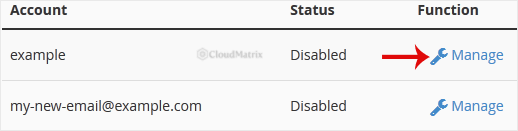
- On the Manage page, if the status shows Disabled, click Enable. cPanel confirms with a message that BoxTrapper has been enabled for that address.
To switch BoxTrapper off again later, return to the same Manage page and click Disable.
Configure BoxTrapper
Once BoxTrapper is enabled on an address, use the Manage page for that address to tune how it behaves:
- Edit White/Black/Ignore Lists. Add trusted senders to the whitelist so they bypass verification, block persistent offenders on the blacklist, and use the ignore list for addresses BoxTrapper should neither challenge nor deliver.
- Configure Settings. Set the spam score threshold at which mail is trapped, the sender's display name used on verification emails, and how many days queued messages and logs are kept.
- Review Queue. See messages awaiting verification and deliver or delete each one by hand. Check this regularly, especially in the first few days, so that genuine mail is not lost.
- Review Log. Review a day-by-day record of what BoxTrapper has trapped, delivered and challenged.
- Edit Confirmation Messages. Customise the wording of the verification, released, returned and blacklist messages that BoxTrapper sends on your behalf.
Troubleshooting
BoxTrapper does not appear in your cPanel Email section: the feature is controlled per hosting package and may be switched off on your plan. Contact Noiz support and ask for the BoxTrapper feature to be enabled for your account.
Expected mail never arrives: open the Review Queue for that address, release the message, then add the sender to the whitelist so future mail is not held. Automated and no-reply senders should always be whitelisted rather than left to verify.
Contacts complain about verification emails: this is normal BoxTrapper behaviour for first-time senders. If it causes more friction than it is worth, disable BoxTrapper and rely on cPanel's Spam Filters instead.
If you would like a hand deciding between BoxTrapper and standard spam filtering, or setting up your whitelist, the Noiz support team is happy to help through your client area.






