Email forwarding lets you send a copy of every message that arrives at one address to another mailbox automatically, without logging in to check two accounts. This guide shows you how to set up a forwarder in cPanel, whether you want to forward mail to Gmail, Outlook, or any other provider, or pipe incoming mail into a script for automated processing.
A forwarder does not need its own mailbox. It simply hands each incoming message straight to the destination you choose, so it is an ideal way to route mail for an address you do not want to log in to separately.
Last reviewed: 27 July 2026, against cPanel & WHM (current stable release, Jupiter interface). This guide is written for Noiz hosting and is kept current against cPanel. It complements, and does not replace, the official cPanel documentation linked below.
Official Documentation Reference
- cPanel » Email » Forwarders (interface reference and field descriptions)
- cPanel » Email » Email Routing (how incoming mail is delivered)
Prerequisites
- A cPanel account on your Noiz hosting plan, with your login details.
- A domain whose mail is delivered to the server (its MX records point to the Noiz mail server). If your domain uses a third party for mail, forwarders created here will not take effect.
- The destination address you want mail sent to, such as your Gmail or Outlook address.
Forward an Email Address to Gmail or Another Provider
- Log in to your cPanel account.
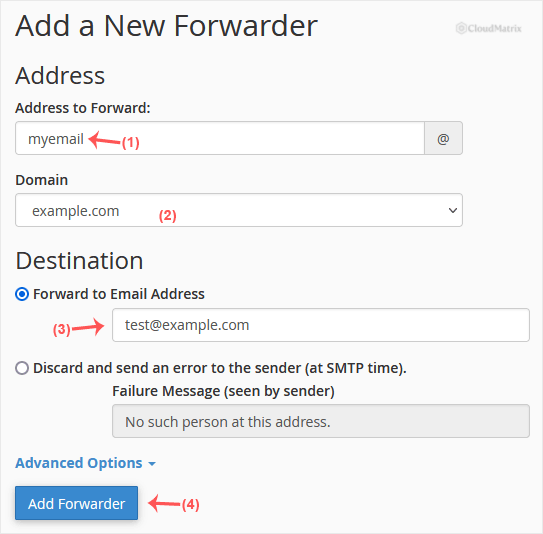
- In the Email section, click Forwarders, then click Add Forwarder.

- Enter the following details:
- Address to Forward: enter the local part of the address you want to forward. To forward
[email protected], entermyemailin this field (leave out the@and the domain). - Domain: if your account hosts more than one domain, select the correct one from the Domain drop-down list.
- Address to Forward: enter the local part of the address you want to forward. To forward
- In the Destination field, select Forward to email address and enter the address where you want to receive the forwarded mail, for example your Gmail address.
- Click Add Forwarder.
New mail arriving at the forwarded address will now be delivered to the destination automatically. Messages that arrived before you created the forwarder are not affected.
Pipe an Email to a Script or Program
Instead of sending mail to another address, you can pipe each incoming message into a program running on the server. This is useful for automation such as ticketing systems, contact-form processors, or custom parsers that read the raw message from standard input.
- In the Email section, click Forwarders, then click Add Forwarder.
- Enter the following details:
- Address to Forward: enter the local part of the address you want to pipe.
- Domain: select the correct domain from the Domain drop-down list if you host more than one.
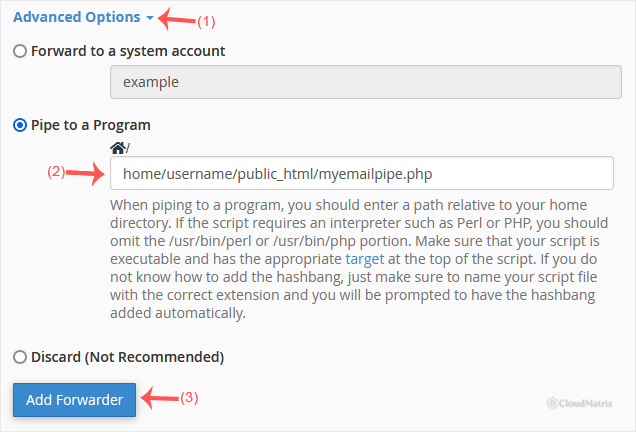
- In the Destination field, click Advanced Options, select Pipe to a Program, and enter the path to your script, for example
home/username/public_html/myemailpipe.php. Note that the path is relative to your account home directory, so it does not begin with a leading slash.
- Click Add Forwarder.
For the pipe to work correctly, the script must:
- Be executable (typically
chmod 0700or0755). - Begin with a valid shebang line, such as
#!/usr/bin/phpor#!/usr/bin/perl. - Read the incoming message from standard input and exit cleanly.
If the script fails or exits with an error, the incoming message may bounce back to the sender, so test your script from the command line before you rely on it.
Troubleshooting
Forwarded mail lands in spam at Gmail or Outlook: when a message is forwarded, the receiving provider sees it arriving from the Noiz mail server rather than the original sender, and a strict DMARC or SPF policy on the sender's domain can cause it to be flagged. The server rewrites the return path to reduce this, but for high-volume or business-critical mail, collecting the mailbox directly over IMAP or POP3, or adding a filter rule at the destination, is more reliable than forwarding.
Nothing arrives at the destination: confirm the domain's MX records point to the Noiz mail server so that mail is actually delivered to this account. If mail for the domain is handled elsewhere, a cPanel forwarder will never see the message.
A piped script produces a bounce: run the script manually from a terminal, feeding it a sample message on standard input, and check the file permissions and shebang line. Path errors are the most common cause, so double-check that the path is correct and has no leading slash.
If you are on a managed Noiz plan and would like help configuring forwarding or a mail pipe, open a support ticket from your Noiz client area and the team will assist.






