Changing an email account's password is one of the first things to do if a mailbox has been compromised, if the password has been shared too widely, or simply as part of good routine security. This guide shows you how to change the password for an email account hosted on your cPanel account with Noiz. Note that this is the password for the mailbox itself (the one you use to send and receive mail, and to sign in to webmail), not the password for your cPanel account.
Last reviewed: 27 July 2026, against the current cPanel & WHM Jupiter interface. This guide is written for Noiz hosting and is kept current against cPanel. It complements, and does not replace, the official cPanel documentation linked below.
Official Documentation Reference
Prerequisites
- Your cPanel sign-in details, which are in your Noiz hosting welcome email or available from your Noiz client area.
- The email address whose password you want to change, for example
[email protected](replace this with your own address). - A note of every device and program that currently checks this mailbox, because you will need to update the password in each one afterwards. See the warning below.
Change the Password
- Log in to your cPanel account.
- In the Email section, click Email Accounts.

- Find the account you want to change in the list of email accounts on the page. Its full address (for example
[email protected]) is shown on the left. - On the right of that account's row, click Manage.

- Under Security, in the New Password field, type a new password, or click Generate to have cPanel create a strong one for you. cPanel shows a strength meter and will not accept a password it considers too weak, so aim for a long mix of upper and lower case letters, numbers and symbols.
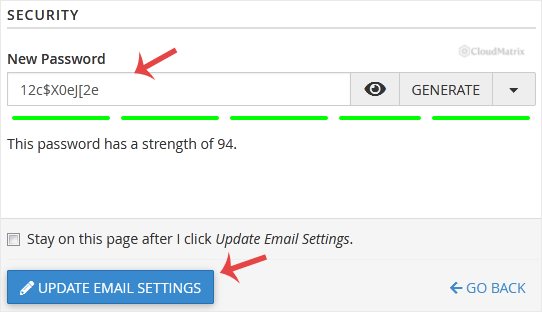
- Scroll down to the bottom of the page and click Update Email Settings.
The password is changed straight away. You can now sign in to webmail and your email programs with the new password.
Important: Update the New Password Everywhere
A mailbox password change takes effect immediately on the server, but nothing else knows about it. Any phone, tablet, laptop or program that was set up to collect this mailbox is still trying to log in with the old password and will start failing to send and receive as soon as you save the change.
After changing the password, go to every place the mailbox is configured and enter the new password, including:
- Desktop mail programs such as Outlook, Apple Mail and Thunderbird.
- The Mail app on your phone and tablet (check every device).
- Any website contact forms, shop or application that sends mail through this account.
Until you do this, those devices keep retrying the old password in the background. Repeated failed logins from the same connection can trigger the server's automatic protection and temporarily block your address, which then makes even the correct password appear to fail. Updating every device promptly avoids this.
No cPanel Access? Change It from Webmail
If you can already sign in to the mailbox but do not have cPanel access, you can change the password from within webmail instead. Log in to webmail with the current password, open the account menu (usually via your address in the top corner), choose Password & Security, and set a new password there. The effect is exactly the same, and the same warning about updating your other devices applies.
Troubleshooting
The password is rejected as too weak: cPanel enforces a minimum password strength. Make it longer and add a wider mix of upper and lower case letters, numbers and symbols, or click Generate and copy the strong password cPanel suggests.
Email stopped working on your phone or in Outlook after the change: those devices are still using the old password. Open the account's settings on each device and enter the new password for both incoming and outgoing (SMTP) mail.
The correct new password keeps being refused: a device left retrying the old password may have triggered a temporary block on your connection. Update or switch off that device, wait a short while, then try again. If it persists, contact Noiz support and mention the address and your current network so the block can be cleared.
Need a Hand?
If you are on a Noiz managed hosting plan and would like an email password reset for you, or you have lost access to both cPanel and the mailbox, open a support ticket from your Noiz client area and the support team will sort it out and confirm it is done.






