This guide shows you how to point a subdomain (for example shop.yourdomain.com, where yourdomain.com is an example you replace with your own domain) at an external web address using cPanel. Once the redirect is in place, anyone who opens the subdomain is forwarded automatically to the site or page you specify. This is useful when you want a short, memorable subdomain to send visitors to a page hosted somewhere else, such as a booking system, a shop on another platform, a social profile, or a landing page.
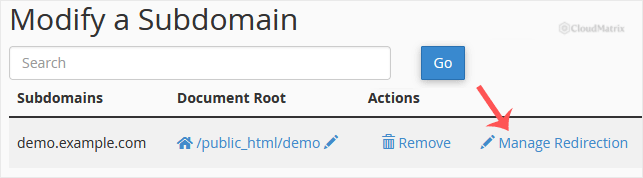
In current cPanel, this kind of redirect is created with the Redirects tool in the Domains section. The subdomain itself must already exist before you can redirect it, so if you have not created it yet, do that first.
Last reviewed: 27 July 2026, against cPanel version 134 (the current STABLE and LTS tier). This guide is written for Noiz hosting and is kept current against cPanel. It complements, and does not replace, the official cPanel documentation linked below.
Official Documentation Reference
Prerequisites
- A hosting account with cPanel access.
- The subdomain you want to redirect must already exist. If it does not, create it first in Domains » Domains using Create A New Domain, then return here.
- The full external web address you want to forward visitors to, including the
https://at the start.
You will find the subdomain tools grouped in the Domains section of the cPanel home screen.

Redirect the Subdomain
- Log in to your cPanel account.
- In the Domains section, click Redirects.
- Under Type, choose the kind of redirect you want:
- Permanent (301) tells browsers and search engines that the subdomain has moved for good. Use this for a lasting redirect.
- Temporary (302) signals that the move is short term. It is handy while you are testing, because browsers do not cache it as aggressively.
- Open the domain dropdown and select the subdomain you want to redirect (for example
shop.yourdomain.com). - Leave the path box (shown as
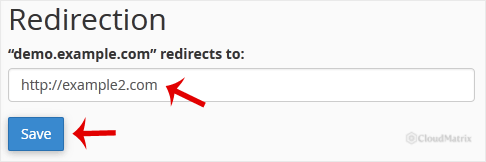
/) empty to redirect the whole subdomain. Only enter a path here if you want to forward one specific folder or file. - In the Redirects to field, type the full destination address, including the protocol, for example
https://www.example.com/landing.
- Choose how the www. version should behave. For most external redirects, Redirect with or without www. is the safest choice, so both
shop.yourdomain.comandwww.shop.yourdomain.comare forwarded. - Leave Wild Card Redirect unticked unless you specifically want every path under the subdomain mapped to a matching path on the destination.
- Click Add.
cPanel confirms the new redirect and lists it near the bottom of the Redirects page. Open the subdomain in a fresh browser tab to check that it now forwards to the correct address.
Changing or Removing a Redirect
cPanel does not let you edit a redirect once it exists. To change where a subdomain points, delete the current entry in the redirect list at the bottom of the Redirects page, then create a new redirect with the correct destination. To stop redirecting altogether, simply delete the entry.
Troubleshooting
The redirect does not seem to work: browsers cache permanent (301) redirects aggressively. Test in a private or incognito window, or clear your browser cache. While you are still deciding on the final destination, use a temporary (302) redirect so changes take effect sooner.
The subdomain is not in the dropdown: it has not been created yet. Create it in Domains » Domains first, then come back to the Redirects tool.
You forgot the protocol: the destination must include http:// or https://. Without it, the redirect is treated as a path on your own site rather than an external address.
If a redirect will not behave as expected, or you would like Noiz to set it up for you, contact the Noiz support team through the client area and the team will be glad to help.






