An add-on domain lets you host a second, fully separate website inside the same cPanel account. Sometimes you do not want that second site to serve its own content at all, but instead to send every visitor straight to another address, for example an existing website, a landing page or a social profile. This guide shows you how to point an add-on domain at another domain or URL using a redirect in cPanel.
Last reviewed: 27 July 2026, against cPanel & WHM (current stable release, Jupiter theme). This guide is written for Noiz hosting and is kept current against cPanel. It complements, and does not replace, the official cPanel documentation linked below.
Official Documentation Reference
Prerequisites
- Access to your Noiz cPanel account.
- The add-on domain already exists in your account. If it does not, add it first from the Domains interface using Create A New Domain.
- The destination address you want visitors to land on, for example
https://www.yourotherdomain.com(replace this example with your own address).
Current versions of cPanel have merged the old Addon Domains, Subdomains and Aliases pages into a single Domains interface, so you no longer manage add-on domains on their own page. Redirects for any domain on your account, including add-on domains, are handled by the dedicated Redirects tool. The steps below use that tool, which is the reliable way to redirect an add-on domain to another address.
Redirect an Add-on Domain
- Log in to your cPanel account.
- Find the Domains section, which groups all of your domain tools including your add-on domains and redirects.
- Click Redirects.
- Under Type, choose Permanent (301) or Temporary (302). See the note below if you are unsure which to pick.
- From the domain drop-down list (shown as
https://(www.)?), select the add-on domain you want to redirect. - In the redirects to box, enter the full destination address you want visitors sent to, including the
https://prefix, for examplehttps://www.yourotherdomain.com. - Choose a www. redirection option. Redirect with or without www. is the safest default, as it catches visitors who type the address either way.
- Optionally tick Wild Card Redirect to also forward requests for any page or folder under the domain (so
yourdomain.com/pagefollows the redirect too), rather than only the home page. - Click Add.
The redirect is now live and appears in the Current Redirects list at the bottom of the same page. To remove or replace it later, click Delete next to the entry in that list.
Permanent (301) or Temporary (302): Which to Choose
The type you choose tells browsers and search engines how to treat the redirect, so it is worth getting right.
- Permanent (301): use this when the move is for good. Search engines transfer the old address's ranking to the destination, and browsers may cache the redirect, so future visits go straight to the new address without checking your server again. This is the usual choice when you are consolidating an old add-on domain onto your main site.
- Temporary (302): use this for a short-term redirect you intend to reverse, such as sending visitors to a holding page while you build the real site. Search engines keep the original address indexed, and browsers do not cache it as aggressively.
Using an Older cPanel Account
If your account still shows the classic Addon Domains icon rather than the merged Domains interface, you can redirect from there instead. The Redirects method above works on every version, so use these steps only if you prefer the older page.
- Log in to your cPanel account.
- In the Domains section, click Addon Domains.

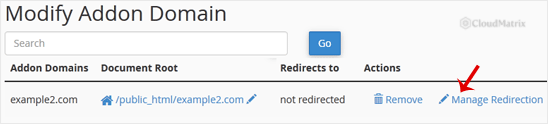
- Under Modify Addon Domain, locate the add-on domain and click Manage Redirection.
- Enter the address you want the add-on domain redirected to in the text box.
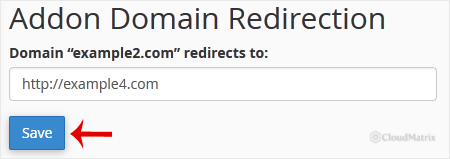
- Click Save.
Troubleshooting
The add-on domain does not appear in the drop-down list: it must be added to your account before you can redirect it. Open the Domains interface, add it with Create A New Domain, then return to Redirects.
The redirect does not seem to work when you test it: a permanent (301) redirect is often cached by your browser. Test in a private or incognito window, or clear your browser cache, before assuming the redirect is wrong. Also confirm the add-on domain's DNS is pointed at your Noiz hosting, as a redirect can only fire once requests reach this server.
You see a certificate warning at the add-on domain: the redirect can only run after the browser makes a secure connection to the add-on domain, so the domain still needs a valid SSL certificate covering it. On Noiz hosting, cPanel issues free AutoSSL certificates automatically once the domain resolves to the server; allow a little time after adding the domain for the certificate to be issued.
You want to undo a redirect: scroll to Current Redirects on the Redirects page and click Delete next to the relevant entry. The add-on domain then serves its own content again.
Need a Hand?
If you are on a managed Noiz hosting plan and would like the Noiz team to set up or check a redirect for you, open a support ticket from your client area and include the add-on domain and the destination address you want it pointed to.






