Creating a MySQL database and creating a database user are two separate steps in cPanel. A new user has no access to any database until you explicitly grant it. This guide shows you how to add an existing user to a database and assign the privileges that let the user read and write data.
Last reviewed: 27 July 2026, against cPanel & WHM (current stable release, Jupiter theme). This guide is written for Noiz hosting and is kept current against cPanel. It complements, and does not replace, the official cPanel documentation linked below.
Official Documentation Reference
Prerequisites
- Access to your Noiz cPanel account.
- An existing MySQL database. If you have not created one yet, use the Create New Database section at the top of the same MySQL Databases page first.
- An existing MySQL user. If you have not created one yet, use the Add New User section on the same page and note the username and password.
cPanel automatically prefixes both database names and usernames with your account username, for example youracct_shop for a database and youracct_appuser for a user. Always use the full prefixed names when you configure an application.
Add a User to a Database
- Log in to your cPanel account.
- In the Databases section, click MySQL Databases.

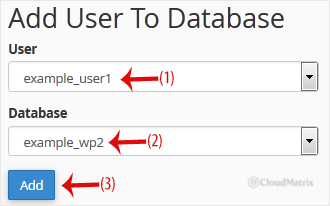
- Scroll down to the Add User to Database section. Select a user from the User drop-down list, then select the target database from the Database drop-down list.
- Click Add.
- On the Manage User Privileges page, tick ALL PRIVILEGES, then click Make Changes.
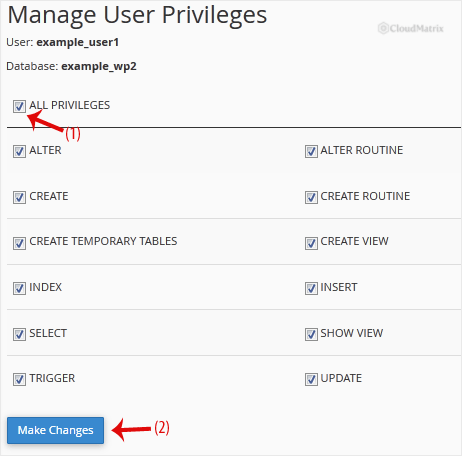
The user is now linked to the database with the privileges you selected. Most content management systems and web applications, such as WordPress, expect the database user to hold ALL PRIVILEGES on their database, so this is the usual choice during installation.
Granting Narrower Privileges
If an application does not need full control, you can tick only the specific privileges it requires instead of ALL PRIVILEGES. Common individual privileges include SELECT, INSERT, UPDATE and DELETE for day-to-day data access, plus CREATE, ALTER, DROP and INDEX for schema changes. Granting only what is needed reduces the impact if the credentials are ever exposed.
Troubleshooting
The user does not appear in the drop-down list: the user must exist before you can add it. Scroll up to Add New User, create the user, then return to Add User to Database.
Your application reports an access-denied error after linking the user: confirm the application is configured with the full prefixed database name and username, that the password matches the one you set, and that the database host is set to localhost.
You changed the privileges but the application still cannot write data: re-open MySQL Databases, click the user under the relevant database to reach Manage User Privileges, confirm the required boxes are ticked, and click Make Changes again.
Need a Hand?
If you are on a managed Noiz hosting plan and would like the Noiz team to set up or check a database user for you, open a support ticket from your client area and include the database and username involved.






