This guide shows you how to create a MySQL database user in cPanel on your Noiz hosting account. A database user (sometimes called a database username or MySQL login) is the account your website or application uses to connect to a database. Creating the user is one half of the job: on its own a new user cannot touch any data until you attach it to a database and grant it privileges, which is covered at the end of this guide.
Last reviewed: 27 July 2026, against the current cPanel & WHM release using the default Jupiter interface. This guide is written for Noiz hosting and is kept current against cPanel. It complements, and does not replace, the official cPanel documentation linked below.
Official Documentation Reference
- cPanel » MySQL Databases: the full reference for creating users, databases, and assigning privileges.
- cPanel » Manage MySQL Databases: editing privileges and removing users after they exist.
Prerequisites
- An active Noiz hosting account with cPanel access.
- Your cPanel login details (sent in your welcome email, or available from the Noiz client area).
Create the MySQL User
- Log in to your cPanel account.
- In the Databases section, click MySQL Databases.
- Scroll down to the MySQL Users heading and find Add New User.
- In the Username field, type the name for the new user.
- Enter a password in the Password and Password (Again) fields, or click Password Generator to have cPanel create a strong one for you. Aim for a strength score of Very Strong.
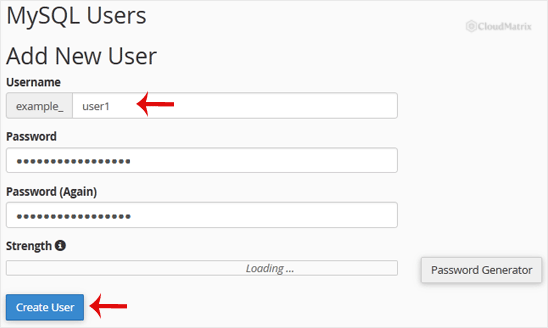
- Click Create User.
cPanel confirms the new user and returns you to the MySQL Databases page.
What You Need to Know Before You Start
- Your account name is added automatically. cPanel prefixes every database user with your account username and an underscore. If you type
appuserand your account isexample, the real login becomesexample_appuser. Always use the full prefixed name in your application's configuration file. - Keep the name short. The full prefixed username has a length limit (32 characters on current MySQL/MariaDB, and older setups cap it at 16). If cPanel refuses a long name, shorten the part you typed.
- Passwords must be strong. The server enforces a minimum password strength, so a weak password is rejected on submit. The built-in Password Generator is the quickest way to satisfy it.
- A new user has no access yet. Creating a user does not connect it to any database. Until you grant privileges, connection attempts fail with an access-denied error even though the login exists.
Next Step: Grant the User Access to a Database
To make the user usable, attach it to a database:
- On the same MySQL Databases page, scroll to Add User to Database.
- Choose the new user from the User menu and the target database from the Database menu, then click Add.
- On the privileges screen, tick ALL PRIVILEGES for a standard application, then click Make Changes.
If you have not created the database yet, do that first in the Create New Database section at the top of the same page.
Troubleshooting
Symptom: "The username you have chosen is too long." Shorten the part you typed; remember cPanel adds your account prefix, which counts towards the limit.
Symptom: The password is rejected on submit. It does not meet the required strength. Use the Password Generator or add length and a mix of upper case, lower case, numbers and symbols.
Symptom: The application reports "Access denied for user" after you created the login. The user exists but has not been added to the database. Complete the Next Step above to grant privileges.
Tip: Record the full (prefixed) database username and password somewhere safe. You will need both when configuring an application manually, and cPanel does not display the password again after creation.
If you would rather Noiz set this up for you, or you run into trouble, open a ticket from the Noiz client area and the support team will assist.






