This guide shows you how to permanently remove a MySQL database from your hosting account using cPanel. Use it when you are decommissioning an old website, clearing out a test database, or freeing up space in your account.
Last reviewed: 27 July 2026, against cPanel & WHM (Jupiter theme, current stable). This guide is written for Noiz hosting and is kept current against cPanel. It complements, and does not replace, the official cPanel documentation linked below.
Official Documentation Reference
Before You Delete a Database
Deleting a database is permanent and immediate. There is no recycle bin, and the data cannot be recovered from within cPanel once it is gone. Before you continue, please note:
- Back it up first. If there is any chance you will need the data again, export the database before deleting it. Open phpMyAdmin in the Databases section, select the database, and use the Export tab to download an
.sqlfile. - Check what uses it. If a live application such as WordPress, Joomla, or an online store points at this database, deleting it will break that site until it is reconnected to another database.
- Database names are prefixed. Your databases appear with your cPanel username in front, for example
youruser_wordpress. Make sure you are deleting the right one.
Delete the Database
- Log in to your cPanel account.
- In the Databases section, click on MySQL Databases.

- Scroll down to Current Databases. This table lists every database on your account. Locate the one you want to remove and, in the Actions column, click Delete.
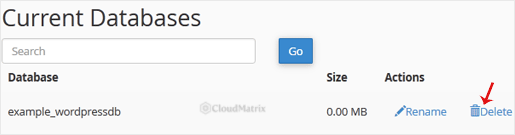
- cPanel asks you to confirm. Click Delete Database to complete the removal.

The database and all of its tables are now gone, and it disappears from the Current Databases list.
Tidy Up the Database User
Deleting a database does not delete the MySQL user that was attached to it. That user account remains under Current Users on the same MySQL Databases page. If the user is no longer needed anywhere, remove it as well: find it in the Current Users list and click Delete. Removing unused users keeps your account tidy and reduces the number of credentials that could be misused.
Troubleshooting
The Delete link does nothing or the page errors: another process may be holding the database open. Close any open phpMyAdmin sessions and any applications connected to it, then try again.
Your website is now showing a database connection error: the site was still using the database you deleted. Restore it from your backup, or update the application's configuration to point at the correct database.
Need a Hand?
If you are on a managed Noiz plan, or you are not sure whether a database is safe to remove, contact Noiz support before you delete anything. It is far quicker to check first than to recover a site after the fact.






