This guide shows you how to rename an existing MySQL database from within cPanel on your Noiz hosting account. It is written for anyone who needs to tidy up an application migration, correct a mistyped database name, or align a database with a new project. cPanel calls this action Rename in the MySQL Databases tool.
Last reviewed: 27 July 2026, against cPanel & WHM (current stable release). This guide is written for Noiz hosting and is kept current against cPanel. It complements, and does not replace, the official cPanel documentation linked below.
Official Documentation Reference
- cPanel » MySQL Databases (create, rename and manage databases)
Before You Begin
- You need access to the cPanel account that owns the database.
- Note which application uses the database (for example WordPress, Joomla or a custom app). You will need to update that application after the rename.
- Take a fresh backup of the database first. Renaming moves every table into a newly named database, and a backup gives you a safe fallback if anything goes wrong.
- cPanel automatically prepends your account username and an underscore to every database name (for example
youracct_shopdb). You only type the part after the underscore; the prefix stays the same when you rename.
Renaming Your Database
- Log in to your cPanel account.
- In the Databases section, click MySQL Databases.

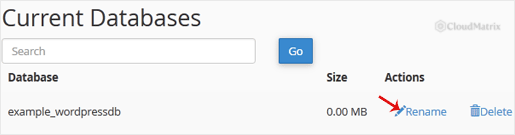
- Scroll to Current Databases, where you will see a list of every database on the account. Locate the database you want to change and click Rename in its row.
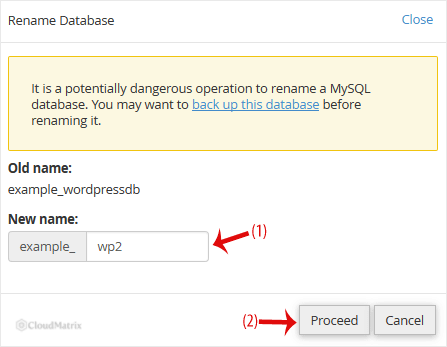
- Type the new database name and click Proceed. cPanel keeps the same username prefix and moves the tables and their user grants across to the new name.
After Renaming: Update Your Application
The rename does not touch your website code. Any application that connected to the old database name will fail to load until you point it at the new one. Open your application's database configuration and replace the old name with the new one:
- WordPress:
wp-config.php, theDB_NAMEline. - Joomla:
configuration.php, the$dbvalue. - Laravel and similar frameworks: the
DB_DATABASEentry in.env.
cPanel recreates the existing database users and their privileges against the new database, so you should not need to add users again. It is still worth loading your site once the change is saved to confirm it connects.
Troubleshooting
The Rename button does nothing or the operation times out: very large databases can exceed the time limit for an in-browser rename. Restore from your backup, then ask Noiz support to complete the rename at server level.
Your site shows a database connection error afterwards: the application is still using the old name. Update the configuration file listed above with the new database name, including the account prefix.
You cannot see the Rename option: confirm you are logged in to the cPanel account that owns the database, and that you are looking under Current Databases rather than the Create New Database box at the top of the page.
Need a Hand?
If the database is large, powers a live site, or you would rather not risk downtime, open a ticket and the Noiz support team will handle the rename and verify the application afterwards.






