Every cron job on your hosting account can email you its output. This guide shows you how to set or change the address those notifications go to in cPanel, so the right mailbox receives them (and how to stop the noise when a job emails you too often).
The Cron Email address is where cPanel sends whatever a scheduled command prints to the screen (its standard output and any errors). If a job stays quiet when it succeeds, you only hear from it when something goes wrong, which is usually exactly what you want.
Last reviewed: 27 July 2026, against the current cPanel Jupiter interface (cPanel & WHM v110+). This guide is written for Noiz hosting and is kept current against cPanel. It complements, and does not replace, the official cPanel documentation linked below.
Official Documentation Reference
- cPanel Cron Jobs interface (official cPanel documentation)
Prerequisites
- An active cPanel hosting account on Noiz, with your cPanel sign-in details.
- A working email address you actually monitor (it does not have to be an address on the same domain).
Set or Change the Cron Email Address
- Log in to your cPanel account.
- In the Advanced section, click Cron Jobs.

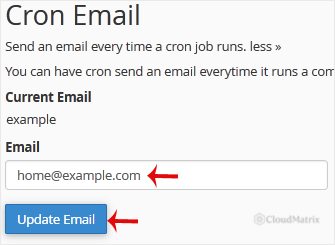
- Under Cron Email, type your full email address into the text field (for example
[email protected], replacing this with your own address). - Click Update Email. cPanel confirms the change, and future job output is sent to that address.
Getting Too Many Cron Emails
The Cron Email address applies to every cron job on the account, and cPanel emails you on every run that produces output, not only on failures. A chatty job can flood your inbox. Rather than removing the address, silence the individual job that is noisy by redirecting its output.
- To silence a job completely, append
>/dev/null 2>&1to the end of its command. cPanel then has nothing to email. - To be told only when a job fails, discard normal output but keep errors: append
>/dev/null(leaving errors to be emailed).
Edit the command from the same Cron Jobs page: find the job in the Current Cron Jobs list and use its Edit action.
Troubleshooting
No cron emails arriving: confirm the address is spelled correctly and check the mailbox's spam or junk folder. Remember that a job only emails you when it prints something, so a silent, successful job is normal and sends nothing.
Emails go to the wrong place: the Cron Email field is account-wide, so updating it here changes the destination for all jobs at once. There is no per-job address in cPanel; route notifications by pointing this field at a monitored, shared, or forwarding mailbox.
If you are on a Noiz managed plan and would like Noiz to review or adjust your scheduled tasks and their notifications, contact Noiz support and the team will assist.






