This guide shows you how to change the schedule or command of an existing cron job, and how to remove a cron job you no longer need, using the Cron Jobs tool in cPanel on your Noiz hosting account. A cron job (sometimes called a "cronjob" or "scheduled task") is a command that the server runs automatically on a repeating schedule, so editing one means adjusting either when it runs or what it runs.
Last reviewed: 27 July 2026, against the current stable cPanel & WHM interface (Jupiter theme). This guide is written for Noiz hosting and is kept current against cPanel. It complements, and does not replace, the official cPanel documentation linked below.
Official Documentation Reference
- cPanel Documentation: Cron Jobs (creating, editing and removing scheduled tasks)
Prerequisites
- An active Noiz cPanel hosting account with cron access, and your cPanel sign-in details.
- At least one existing cron job listed under Current Cron Jobs. If you have not created one yet, there is nothing to edit or delete.
How to Edit a Cron Job
- Log in to your cPanel account.
- In the Advanced section, click Cron Jobs. You can also type
croninto the cPanel search bar at the top of the page to jump straight to it.

- Scroll down to the bottom of the page. Under Current Cron Jobs, find the job you want to change and click Edit next to it.
- Adjust the schedule fields (minute, hour, day, month and weekday) or the Command, then click Edit Line to save your change. If you do not click Edit Line, your changes are not kept.
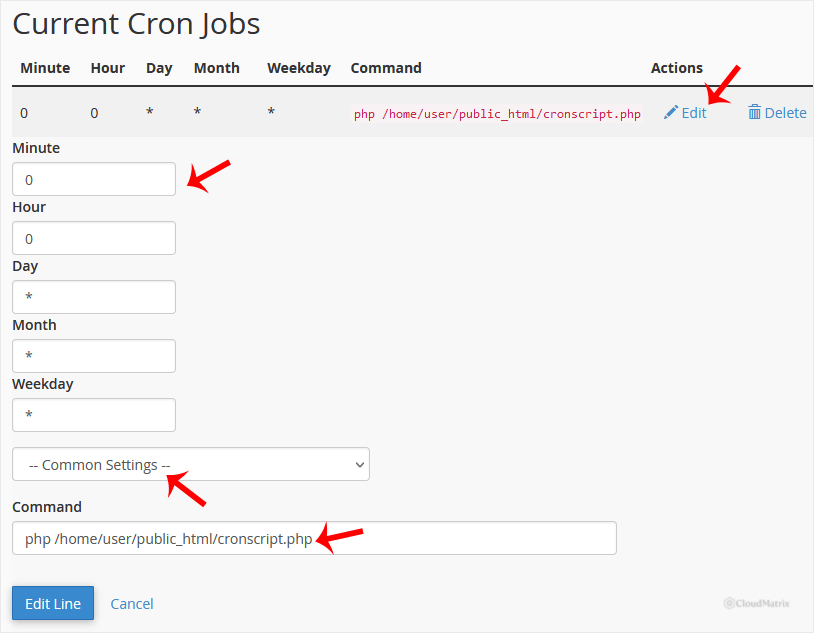
What you are actually editing
Each cron line is made of five time fields followed by the command to run. The five fields are, in order, minute, hour, day of month, month and day of week. cPanel gives you drop-down menus for the common intervals (for example "Once Per Hour" or "Twice Per Month"), so in most cases you do not need to write the schedule by hand.
A few things worth knowing before you save:
- Use the full path in the command. Cron runs with a minimal environment, so a command that works when you type it in the shell can fail under cron if it relies on a relative path. Where possible, use the absolute path to the script or binary, for example
/usr/local/bin/php /home/username/public_html/cron/task.php. - The notification email is separate. The address at the top of the Cron Jobs page is where the server sends any output a job produces. Editing a job does not change that address, and clearing that field stops cron emails for every job, not just one.
- Test with a close-in time first. If you are unsure a changed command works, set the schedule to run a minute or two ahead, confirm it behaves, then set it back to the real interval.
How to Delete a Cron Job
- Under Current Cron Jobs, find the job you want to remove and click Delete next to it.
- In the Delete this cron job? confirmation, click Delete to confirm.
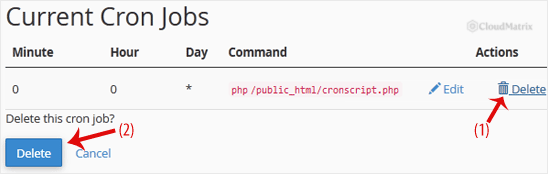
Deletion is immediate and there is no undo. If there is any chance you will want the job back, copy the full command line into a note before you delete it, so you can recreate it later. To temporarily pause a job rather than lose it, edit it to run at an interval far in the future instead of deleting it.
Troubleshooting
Symptom: You cannot see the Cron Jobs icon. Search cron in the cPanel search bar. If it still does not appear, your hosting plan may not include cron access; contact Noiz support to confirm.
Symptom: Your edit did not take effect. Make sure you clicked Edit Line after making the change. Navigating away without saving leaves the old schedule and command in place.
Symptom: The job still runs after you deleted it. You may have removed a different line. Refresh the page and check that the line no longer appears under Current Cron Jobs.
Symptom: The job runs on the schedule but nothing happens. This is almost always the command rather than the schedule. Check the path to the script or interpreter and any file permissions, then set a close-in test time to watch it run.
Need a hand?
If a scheduled task is not behaving as expected, or you would like Noiz to review your cron setup, open a ticket from your Noiz client area and the support team will assist. Customers on managed plans can have cron jobs configured and checked on their behalf.






