A cron job is a task your hosting account runs automatically on a schedule you set, so a script runs by itself at a fixed time instead of you having to trigger it by hand. This guide shows you how to create a cron job in cPanel on Noiz hosting, how to write the command correctly, and the gotchas worth knowing before you schedule one.
Last reviewed: 27 July 2026, against cPanel & WHM (Jupiter interface, latest stable). This guide is written for Noiz hosting and is kept current against cPanel. It complements, and does not replace, the official cPanel documentation linked below.
Official Documentation Reference
Prerequisites
- A Noiz hosting account on a cPanel plan, and your cPanel login.
- The full path to the script you want to run, or the command you would normally type at the shell.
Create the cron job
1. Log in to your cPanel account.
2. In the Advanced section, click Cron Jobs.

3. Under Add New Cron Job, open the Common Settings drop-down and choose how often the job should run, for example Once Per Day. cPanel fills in the five schedule fields (Minute, Hour, Day, Month and Weekday) for you. You can adjust any of these fields by hand afterwards if you need a more specific time.
4. In the Command field, enter the command you want to run. Use the full path to the interpreter and to your script rather than a relative path. For a PHP script, that usually looks like this:
/usr/local/bin/php /home/username/public_html/cron/script.phpTo run a script by requesting its URL instead, use wget or curl:
wget -q -O /dev/null https://yourdomain.com/cron/script.phpReplace username, the path and yourdomain.com with your own values.
5. Click Add New Cron Job. The job appears in the Current Cron Jobs table lower down the page, where you can edit or delete it at any time.
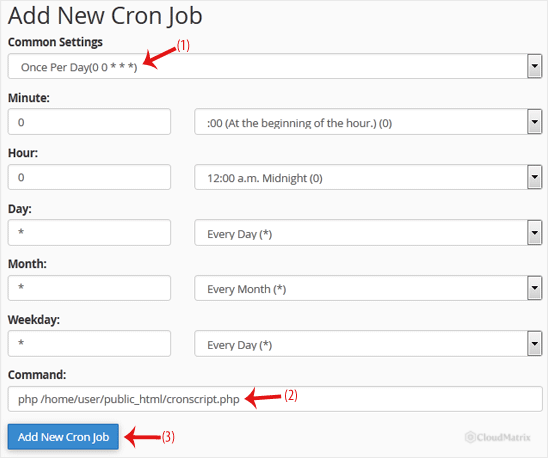
Understanding the schedule fields
Each cron job is defined by five time fields, read left to right:
- Minute (0 to 59), Hour (0 to 23), Day of month (1 to 31), Month (1 to 12) and Weekday (0 to 6, where 0 is Sunday).
- An asterisk (
*) means "every". So0 3 * * *runs at 03:00 every day, and*/15 * * * *runs every fifteen minutes.
The Common Settings drop-down is simply a shortcut that writes these values for you, which is the easiest way to start.
The email notification gotcha
By default cPanel emails the output of every cron run to the address shown in the Cron Email box at the top of the page. A job that prints anything, even a routine success message, will send you an email on every single run, which quickly becomes noise. To keep only genuine errors, discard the normal output by adding this to the end of your command:
/usr/local/bin/php /home/username/public_html/cron/script.php >/dev/null 2>&1Set a real address in Cron Email while you are testing a new job, then tidy the output once you are happy it works.
Troubleshooting
The job never seems to run: check that you used full paths for both the interpreter and the script, and that the script has execute permission. A relative path such as script.php on its own will usually fail because cron does not run from your web directory.
You are flooded with cron emails: the script is producing output on every run. Redirect it with >/dev/null 2>&1 as shown above so only real errors reach your inbox.
The site slows down or the job overlaps itself: you have scheduled it too frequently. Leave enough time between runs for the previous one to finish, and avoid one-minute intervals unless the task genuinely needs them.
The Cron Jobs icon is missing: cron access can be switched off at the plan level. If you do not see it in the Advanced section, contact the Noiz support team.
If you are unsure which command to schedule, or a cron job is not behaving as expected, contact the Noiz support team and they will be glad to help you set it up.






