You can edit files directly on your website using the built-in File Manager in your cPanel account, without downloading them or connecting over FTP. This guide shows you how to open a file, make your changes and save them, and explains the difference between the two editors cPanel offers so you pick the right one for the job.
Last reviewed: 27 July 2026, against cPanel & WHM (Jupiter interface, current stable). This guide is written for Noiz hosting and is kept current against cPanel. It complements, and does not replace, the official cPanel documentation linked below.
Official Documentation Reference
- cPanel File Manager (feature reference, including the Edit and HTML Editor tools)
Prerequisites
- A Noiz hosting plan that uses cPanel, and your cPanel sign-in details.
- The location of the file you want to edit (for a website, files usually live under
public_html).
Editing a File
- Log in to your cPanel account.
- In the Files section, click File Manager.

- Navigate to the directory where your file is located (for example,
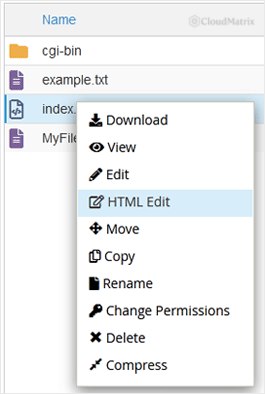
public_htmlfor your main website). - Right-click the file, then click Edit or HTML Editor in the context menu. (If your file does not appear, see the note on hidden files in Troubleshooting below.)
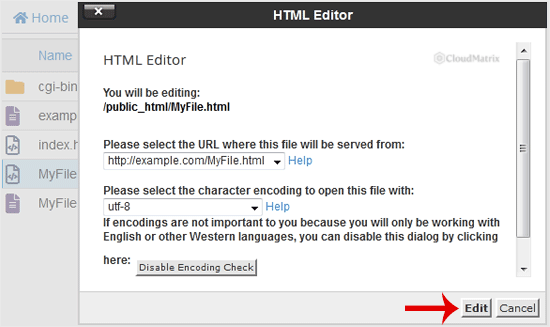
- cPanel shows a character-encoding confirmation before it opens the editor. Leave the encoding as it is (usually
utf-8) unless you have a specific reason to change it, then click Edit to open the editor.
- Make your changes, then click Save Changes at the top of the editor.
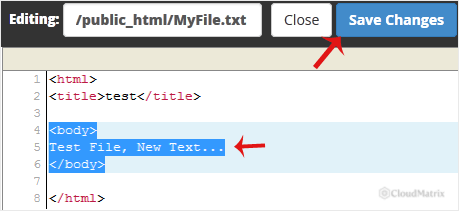
Your file is now saved. Because File Manager edits go straight to the live copy on the server, the change takes effect on your site immediately.
Edit or HTML Editor: Which to Use
cPanel gives you two editors, and picking the wrong one is the most common cause of a mangled file:
- Edit opens a plain code editor with line numbers and syntax highlighting. Use it for HTML you have written by hand, and for PHP, CSS, JavaScript,
.htaccess, configuration files and anything else where the exact characters matter. This is the safe default for almost every edit. - HTML Editor is a visual (WYSIWYG) editor for HTML pages, marked as a beta feature in current cPanel. It is convenient for simple text changes, but it can rewrite or reformat your markup and strip out code it does not understand, so avoid it on hand-crafted pages or anything containing scripts.
Troubleshooting
The file appears as strange or random characters: you selected the wrong encoding at step 5. Do not click Save Changes, or you may corrupt the file. Close the editor, right-click the file again, and choose the correct encoding (utf-8 suits most modern files) before opening it.
You cannot open a large file: the in-browser editor will not open files larger than roughly 1 MB. Download the file (right-click, Download), edit it on your computer, then upload it back over the original.
The file (such as .htaccess) is not listed: dotfiles are hidden by default. Click Settings in the top-right of File Manager, tick Show Hidden Files (dotfiles), and save.
Save Changes does nothing or reports an error: the file may be read-only. Right-click it, choose Permissions, and confirm the owner has write access (for a typical file that is 644).
Before editing anything important, it is worth keeping a copy: right-click the file, choose Copy, and save it with a name such as index.html.bak so you can roll back if a change goes wrong.
If you would rather Noiz handle the change for you, or you are unsure which file to edit, contact the Noiz support team and they will assist.






