The cPanel File Manager lets you create, organise, and edit your website files directly in your browser, without needing a separate FTP client. This guide shows you how to create a new folder and a new file inside File Manager, and points out the naming details that trip people up on Linux hosting.
Last reviewed: 27 July 2026, against the current stable release of cPanel and WHM (the Jupiter theme, which is now the default). This guide is written for Noiz hosting and is kept current against cPanel. It complements, and does not replace, the official cPanel documentation linked below.
Official Documentation Reference
Prerequisites
- Access to your cPanel account (your Noiz welcome email contains the login details).
- An idea of where the new folder or file needs to live. Your public website files sit inside
public_html.
Create a New Folder
- Log in to your cPanel account.
- In the Files section, click File Manager.

- Navigate to the directory where you want the new folder. To place it on your live website, open
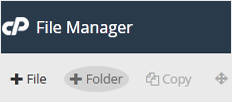
public_htmlfirst. - On the toolbar at the top, click + Folder.
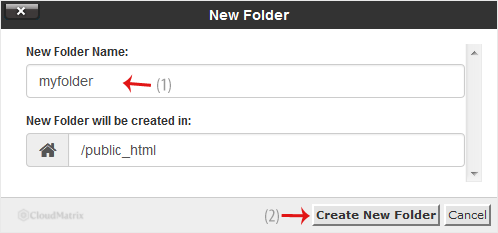
- In the New Folder Name field, type a name such as
my-folder, then click Create New Folder. The new folder appears in the current directory.
Create a New File
- Navigate to the directory where you want the new file.
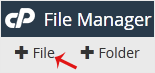
- On the toolbar at the top, click + File.
- In the New File Name field, type a name such as
myfile.txt, then click Create New File. The empty file appears in the current directory, ready for you to edit.
Naming Tips and Common Gotchas
- Linux is case-sensitive. On Noiz hosting servers,
MyFile.txtandmyfile.txtare two different files. Pick a convention (lowercase is a safe default) and stick to it, or links pointing at the wrong casing will return a "not found" error. - Avoid spaces in names. Use hyphens (
my-folder) or underscores (my_folder) instead of spaces, so your files behave predictably in URLs and on the command line. - Hidden files start with a dot. Files such as
.htaccessare hidden by default. To see or create them, open Settings at the top right of File Manager and tick Show Hidden Files (dotfiles). - Location decides what is public. Anything inside
public_htmlis served on your main domain. Files kept outside the document root stay private and are not reachable from the web.
Need a hand?
If you are on a managed Noiz plan and would rather have files created, moved, or edited for you, contact the Noiz support team through the client area and the team will assist.






