The cPanel File Manager lets you upload files to your hosting account straight from your web browser, with no separate FTP program to install or configure. It is the quickest way to add a page, a logo, a configuration file, or a whole website archive to your account. This guide shows you how to do it on your Noiz cPanel hosting.
Last reviewed: 27 July 2026, against cPanel & WHM with the Jupiter interface (latest stable). This guide is written for Noiz hosting and is kept current against cPanel. It complements, and does not replace, the official cPanel documentation linked below.
Official Documentation Reference
- cPanel File Manager (feature overview)
- Upload files in File Manager
Prerequisites
- An active Noiz cPanel hosting account and your cPanel login details.
- The file or files you want to upload, ready on your computer.
- An idea of where the files belong. For your main website this is the
public_htmldirectory; subdomains and addon domains have their own document roots.
Upload a File in cPanel File Manager
1. Log in to your cPanel account.
2. In the Files section of the cPanel home screen, click File Manager.

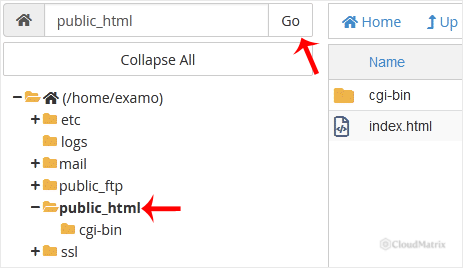
3. In File Manager, navigate to the directory you want to upload into. To publish files to your main website, open the public_html directory. In the directory list on the left, double click public_html.
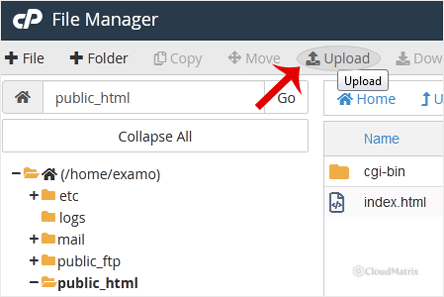
4. With the destination directory open, click Upload in the toolbar at the top. This opens the upload page in a new browser tab.
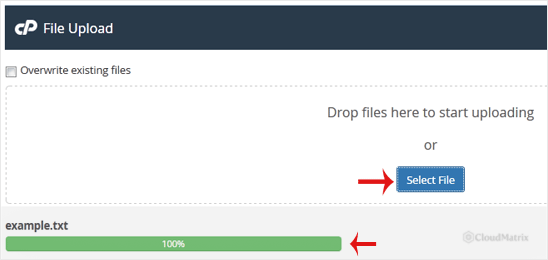
5. Click Select File and choose the file you want to upload from your computer, then click Open. The upload begins straight away and a progress bar shows how far it has got. You can also drag and drop files from your computer directly onto the upload area. When every file reads 100%, the upload is complete and you can close the tab and return to File Manager.
Tips and Troubleshooting
- Overwriting existing files: if a file of the same name already exists in the folder, tick Overwrite existing files on the upload page before you upload. Without it, cPanel adds a number to the new file name instead of replacing the old one.
- Uploading a whole site at once: the File Manager uploads individual files, not folders. To move a large site or a folder tree, compress it into a single
.zipon your computer, upload the archive, then select it in File Manager and click Extract to unpack it in place. - Maximum upload size: browser uploads have a size limit, shown as Maximum file size allowed for upload on the upload page. For very large files that exceed it, use SFTP or, on a managed plan, ask Noiz support to place the file for you.
- Nothing appears on your website: confirm you uploaded into the correct document root. Files must sit inside
public_html(or the relevant subdomain or addon domain folder) to be served, and your home page usually needs to be namedindex.htmlorindex.php. - Hidden files such as
.htaccess: if you cannot see a dotfile after uploading, click Settings in the top right of File Manager and enable Show Hidden Files (dotfiles).
If an upload keeps failing or a file will not appear where you expect it, Noiz support can check the account and place the files for you. Open a ticket from your Noiz client area and include the file name and the folder it should live in.






