A full cPanel backup packages everything in your hosting account (your home directory and website files, databases, email accounts, forwarders and filters, and account settings) into a single downloadable archive. Sending that archive straight to a remote FTP or SCP server keeps a copy off the hosting server, which is exactly what you want for disaster recovery or for moving to a new server. This guide shows you how to generate a full backup in cPanel and have it delivered to a remote FTP destination.
Last reviewed: 27 July 2026, against the cPanel Jupiter interface (current default). This guide is written for Noiz hosting and is kept current against cPanel. It complements, and does not replace, the official cPanel documentation linked below.
Official Documentation Reference
- Backup for cPanel (the interface used in this guide)
- Backup Wizard (guided partial backups and self-service restores)
Prerequisites
- Access to your cPanel account.
- The remote FTP or SCP server's hostname or IP address, a username and password, the port number, and a writable target directory that already exists on the remote server.
Generate a Full Backup and Send it to FTP
1. Open the Backup interface
Log in to your cPanel account. In the Files section, click Backup.

2. Start a full account backup
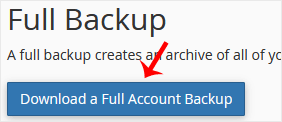
Under Full Backup, click Download a Full Account Backup.
3. Choose the remote FTP destination
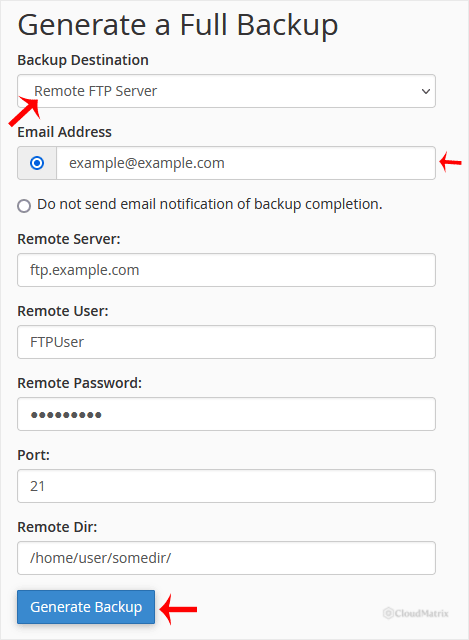
On the Generate a Full Backup page, complete the fields:
- Backup Destination: select Remote FTP Server. If the connection stalls or the transfer fails, choose Remote FTP Server (passive mode transfer) instead, which works better through firewalls. For an encrypted transfer, choose Secure Copy (SCP) where the remote server supports it.
- Email Address: enter the address where cPanel should send a notification once the backup finishes. To skip the notification, tick Do not send email notification of backup completion.
- Remote Server: the FTP host, for example
ftp.yourdomain.com(an example to replace with your own) or its IP address. - Remote User: your FTP username.
- Remote Password: your FTP password.
- Port:
21for standard FTP, or22for SCP. Use whichever port your remote server listens on. - Remote Dir: the target folder on the remote server, for example
/home/username/backupfolder/. The directory must already exist and be writable.
4. Generate the backup
Click Generate Backup. cPanel builds the archive in the background and uploads it to the remote server. Large accounts can take a while, so you do not need to keep the page open. If you left the email notification enabled, you will be told when it has finished.
Good to Know
- A full backup is for migration and safekeeping, not one-click restores. You cannot restore a full account backup through the cPanel interface yourself; restoring one requires server-level (root) access. To restore individual files, folders, or databases on your own, use the Backup Wizard or the File and Directory Restoration tool instead.
- Standard FTP is not encrypted. Your username, password, and files travel in plain text over FTP. Prefer Secure Copy (SCP) where the remote server supports it.
- Check the remote free space. The archive contains your entire account, so make sure the remote server has enough space to receive it.
- Back up regularly. A backup is only useful if it is recent. Keep to a routine and hold at least one copy off the hosting server.
Troubleshooting
- The transfer fails or times out: switch the Backup Destination to Remote FTP Server (passive mode transfer). Active-mode FTP is often blocked by firewalls and NAT.
- Login or permission errors: confirm the username, password, and port, and make sure the Remote Dir exists and is writable by that account.
- No confirmation email: check the address you entered and your spam folder, or confirm you did not tick the do-not-notify option.
Need a Hand?
If your Noiz plan includes cPanel and you would like help configuring a remote backup destination, or you need a full backup restored, open a support ticket from your Noiz client area and the team will assist.






