A recent backup is your safety net if a website is hacked, a bad update breaks it, or you delete something by mistake. This guide shows you how to generate and download a full backup of your cPanel account on Noiz hosting, so you always have a copy of your files, databases and email in a single archive that you can keep safely off the server.
Last reviewed: 27 July 2026, against the current cPanel & WHM Jupiter interface. This guide is written for Noiz hosting and is kept current against cPanel. It complements, and does not replace, the official cPanel documentation linked below.
Official Documentation Reference
Prerequisites
- Your cPanel sign-in details, which are in your Noiz hosting welcome email or available from your Noiz client area.
- Enough free disk space to hold the archive. A full backup is written into your home directory first, so it briefly needs roughly as much free space as your account currently uses.
Full Backup or Partial Backup: Which One You Need
Before you start, it is worth knowing the difference, because it decides whether you can restore the backup yourself later.
- A full backup archives everything in one file: your home directory, databases, email accounts, forwarders and filters. It is the right choice for keeping a complete off-server copy or for moving an account to another server. The catch is that a full backup cannot be restored from within cPanel; only a server administrator can restore it. On Noiz managed plans, the support team does that for you.
- A partial backup covers one part at a time (your home directory, a single MySQL database, or your email forwarders and filters). Partial backups are the ones you can restore yourself through cPanel. If your goal is to be able to roll something back on your own, take partial backups as well.
Generate a Full Backup
- Log in to your cPanel account.
- In the Files section, click Backup.
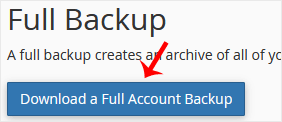
- Under Full Backup, click Download a Full Account Backup.
- Set the Backup Destination to Home Directory. Enter your email address so that cPanel notifies you when the archive is ready. If you would rather not be emailed, choose Do not send email notification of backup completion instead.
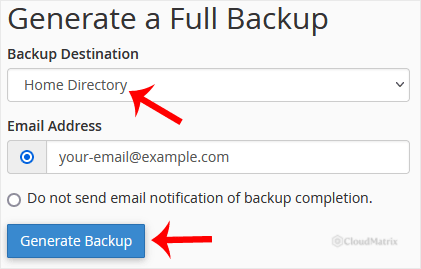
- Click Generate Backup. cPanel builds the archive in the background; a large account can take several minutes.
Download the Backup
When the backup finishes you receive a notification, if you supplied an email address. Return to Files > Backup and, under Backups Available for Download on the Full Backup screen, click the archive (a .tar.gz file) to save it to your computer.
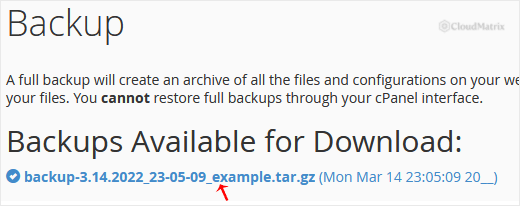
Once the file is safely on your own computer or another storage location, delete the copy that was left in your home directory so that it does not count against your disk quota.
Good Practice
- Keep the backup off the server. A backup that only lives in your hosting account is lost if the account itself has a problem, so always download it and store a copy elsewhere.
- Back up before big changes. Take a fresh backup before updating your CMS, swapping themes or plugins, or editing the database, so you have a clean point to return to.
- Mind your disk quota. Because the archive is created in your home directory first, a very large account can hit its quota while the backup runs. Free up space, or ask Noiz support, if the backup will not complete.
Troubleshooting
The backup never completes or errors out: this is usually a disk-space or quota problem, because the archive is built inside your account. Remove old backups and unnecessary files, then try again.
You need to restore a full backup: a full account backup cannot be restored from within cPanel. If you are on a Noiz managed plan, open a support ticket and the team will restore it for you. If you only need to roll back one part, use the partial-backup restore option on the Backup screen instead.
The download is very slow or times out: large archives download best over a stable connection. If the browser download keeps failing, contact Noiz support for an alternative way to retrieve the file.
Need a Hand?
If you are on a Noiz managed hosting plan and would like a backup taken or restored for you, open a support ticket from your Noiz client area and the support team will handle it and confirm it is done.






